
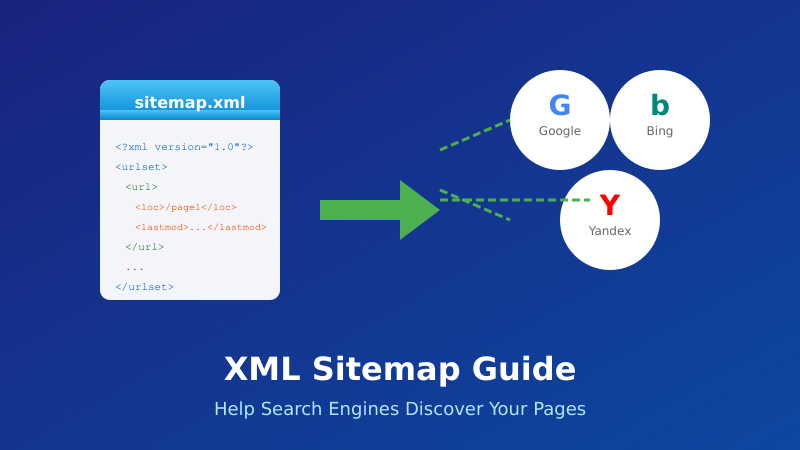
An XML sitemap is one of the most fundamental — yet often misunderstood — elements of technical SEO. It’s a simple file that can significantly improve how search engines discover and index your content.
I’ve set up sitemaps for hundreds of websites over the years. This guide covers everything you need to know: what XML sitemaps are, why they matter, how to create one, and the best practices that actually make a difference in 2026.
What Is an XML Sitemap?
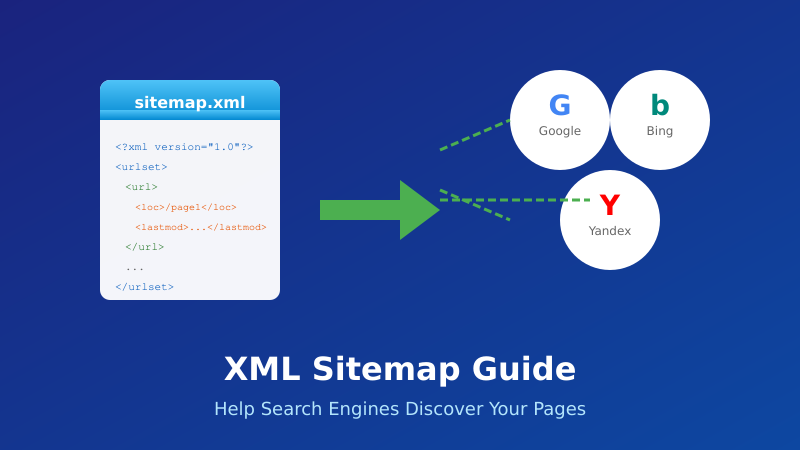
An XML sitemap is a file that lists all the important URLs on your website. It acts as a roadmap for search engine crawlers, telling them what pages exist and where to find them.
Here’s what a basic XML sitemap looks like:
<?xml version="1.0" encoding="UTF-8"?>
<urlset xmlns="http://www.sitemaps.org/schemas/sitemap/0.9">
  <url>
    <loc>https://example.com/</loc>
    <lastmod>2026-01-10</lastmod>
  </url>
  <url>
    <loc>https://example.com/about/</loc>
    <lastmod>2026-01-05</lastmod>
  </url>
</urlset>
The sitemap file is typically located at yoursite.com/sitemap.xml.
XML Sitemap Elements
| Element | Required | Description |
|---|---|---|
<loc> | Yes | The full URL of the page |
<lastmod> | No | Last modification date (YYYY-MM-DD) |
<changefreq> | No | How often page changes (ignored by Google) |
<priority> | No | Relative importance 0.0-1.0 (ignored by Google) |
Important: Google ignores <changefreq> and <priority> values. Focus on accurate <lastmod> dates instead — Google does use these when they’re reliable.
Why Do You Need an XML Sitemap?
Search engines can discover your pages through links, but a sitemap makes the process faster and more reliable.
You Especially Need a Sitemap If:
- Your site is large — Thousands of pages are harder to crawl completely
- Your site is new — Few external links mean crawlers may not find all pages
- You have orphan pages — Pages without internal links pointing to them
- You use rich media — Video and image sitemaps help with media indexing
- You publish frequently — New content gets discovered faster
- Your site has deep architecture — Pages many clicks from homepage
Benefits of XML Sitemaps
- Faster indexing — New pages get discovered quicker
- Better crawl efficiency — Crawlers know exactly what to index
- Visibility into indexing — Search Console shows sitemap coverage
- Support for all content types — Images, videos, news articles
Types of Sitemaps
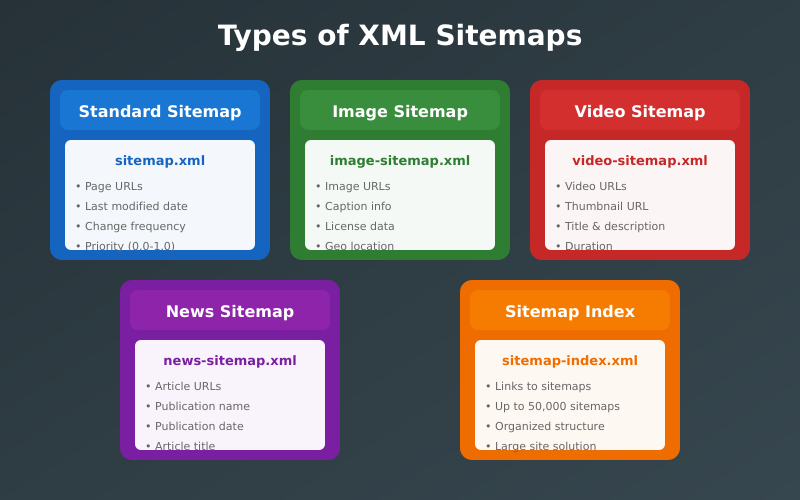
There are several types of sitemaps, each serving different purposes:
1. XML Sitemap (Standard)
The most common type. Lists your website’s pages for search engines. This is what most people mean when they say “sitemap.”
2. Sitemap Index
A master file that references multiple sitemaps. Required when you have more than 50,000 URLs or your sitemap exceeds 50MB.
<sitemapindex xmlns="http://www.sitemaps.org/schemas/sitemap/0.9">
  <sitemap>
    <loc>https://example.com/sitemap-posts.xml</loc>
  </sitemap>
  <sitemap>
    <loc>https://example.com/sitemap-pages.xml</loc>
  </sitemap>
</sitemapindex>
3. Image Sitemap
Helps Google discover images that might not be found through crawling (like images loaded via JavaScript).
4. Video Sitemap
Provides metadata about videos on your site — title, description, duration, thumbnail. Essential for video SEO.
5. News Sitemap
For Google News publishers. Includes articles published within the last 48 hours.
6. HTML Sitemap
A user-facing page (not XML) that lists links to all pages. Helps visitors navigate but less important for SEO than XML sitemaps.
How to Create an XML Sitemap
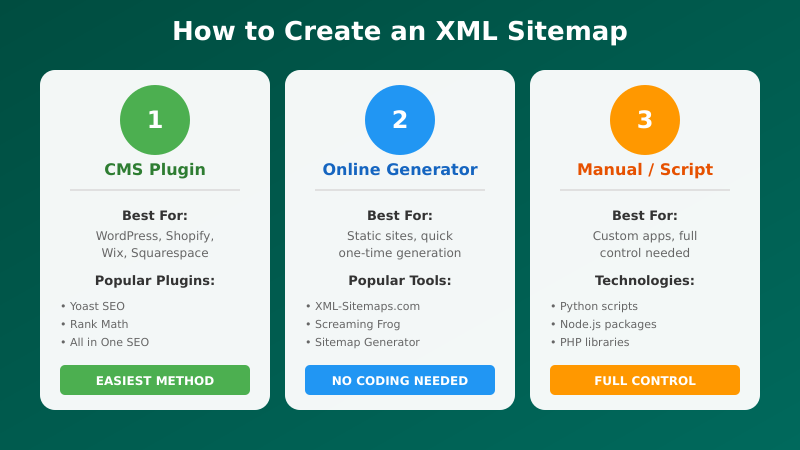
There are several ways to create a sitemap depending on your platform and technical skills.
Method 1: WordPress Plugins (Easiest)
If you use WordPress, plugins handle everything automatically:
Yoast SEO (Recommended)
- Install and activate Yoast SEO
- Go to Yoast SEO → Settings → Site Features
- Ensure “XML sitemaps” is enabled
- Your sitemap is at
yoursite.com/sitemap_index.xml
Rank Math
- Install and activate Rank Math
- Go to Rank Math → Sitemap Settings
- Configure which post types to include
- Your sitemap is at
yoursite.com/sitemap_index.xml
Both plugins automatically update your sitemap when you publish, edit, or delete content.
Method 2: Built-in CMS Features
Many platforms generate sitemaps automatically:
- Shopify — Automatic at
/sitemap.xml - Wix — Automatic at
/sitemap.xml - Squarespace — Automatic at
/sitemap.xml - Webflow — Automatic at
/sitemap.xml
Check your platform’s documentation — most modern CMS platforms include this feature.
Method 3: Online Sitemap Generators
For static sites or one-time generation:
- XML-Sitemaps.com — Free for up to 500 URLs
- Screaming Frog — Crawl your site and export sitemap (500 URLs free)
Limitation: Static sitemaps become outdated when you add or remove pages. You’ll need to regenerate manually.
Method 4: Manual Creation
For small sites or complete control, create the XML file manually:
- Create a file named
sitemap.xml - Add the XML structure with your URLs
- Upload to your root directory
- Update manually when content changes
Only recommended for very small, rarely-updated sites.
How to Submit Your Sitemap
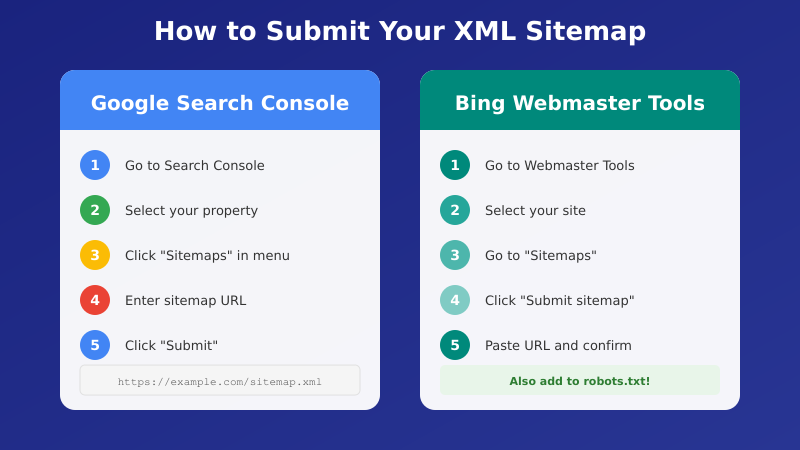
Once created, submit your sitemap to search engines for faster discovery.
Google Search Console
- Go to Google Search Console
- Select your property
- Navigate to Sitemaps in the left menu
- Enter your sitemap URL (e.g.,
sitemap.xml) - Click Submit
Google will show the submission status and how many URLs were discovered.
Bing Webmaster Tools
- Go to Bing Webmaster Tools
- Select your site
- Go to Sitemaps
- Submit your sitemap URL
robots.txt Method
You can also reference your sitemap in robots.txt. Add this line:
Sitemap: https://yoursite.com/sitemap.xmlThis helps any crawler that reads robots.txt discover your sitemap automatically.
XML Sitemap Best Practices
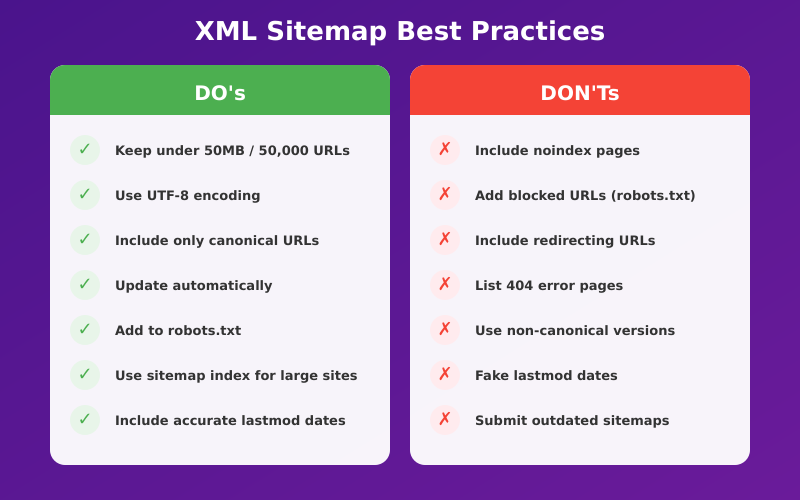
Follow these guidelines for an effective sitemap:
1. Only Include Indexable Pages
Your sitemap should only contain pages you want indexed:
- Don’t include noindex pages
- Don’t include redirected URLs
- Don’t include pages blocked by robots.txt
- Don’t include duplicate content (use canonical URLs only)
2. Use Absolute URLs
Always use full URLs including the protocol:
Correct: https://example.com/page/
Wrong: /page/
3. Keep URLs Consistent
Use the same URL format throughout:
- Choose www or non-www (stick to one)
- Choose trailing slash or no trailing slash (stick to one)
- Always use HTTPS
4. Keep It Under Size Limits
- Maximum 50,000 URLs per sitemap
- Maximum 50MB file size (uncompressed)
- Use a sitemap index for larger sites
5. Use Accurate lastmod Dates
Only update <lastmod> when page content actually changes. Google trusts accurate dates but will ignore them if they’re unreliable.
6. Use UTF-8 Encoding
Ensure your sitemap uses UTF-8 encoding and properly escapes special characters:
&becomes&'becomes'"becomes"
Common Sitemap Mistakes
Avoid these common errors:
Including Non-Canonical URLs
If page A canonicals to page B, only include page B in your sitemap. Including both creates confusion.
Including Noindex Pages
Pages with noindex meta tags shouldn’t be in your sitemap. You’re telling Google to both find and ignore the same page — mixed signals.
Including Redirects
Redirected URLs (301, 302) shouldn’t be in your sitemap. Include only the final destination URLs.
Not Updating the Sitemap
Static sitemaps become outdated quickly. Use dynamic generation (CMS plugins) or regenerate regularly.
Wrong URL Protocol
If your site uses HTTPS, your sitemap must list HTTPS URLs. HTTP URLs in an HTTPS sitemap create problems.
Checking Your Sitemap
After creating your sitemap, verify it works correctly:
1. Access It Directly
Visit yoursite.com/sitemap.xml in your browser. You should see XML content, not an error page.
2. Validate the XML
Use a validator to check for syntax errors:
- Google Search Console shows errors when you submit
- XML Sitemap Validator
3. Check Search Console
After submitting, monitor the Sitemaps report for:
- Number of URLs discovered vs. indexed
- Any errors or warnings
- Last read date
FAQ
Does every website need an XML sitemap?
Technically no. Small sites with good internal linking may not need one. But there’s no downside to having one, and it provides visibility into indexing through Search Console. I recommend creating one for every site.
Will a sitemap guarantee my pages get indexed?
No. A sitemap helps Google discover your pages, but it doesn’t guarantee indexing. Google still decides whether each page is worth indexing based on quality, relevance, and other factors.
How often should I update my sitemap?
Ideally, automatically whenever content changes. If using a CMS plugin, this happens automatically. For static sitemaps, regenerate whenever you add, remove, or significantly update pages.
Should I include images and videos in my sitemap?
For most sites, a standard XML sitemap is sufficient — Google finds images and videos when crawling your pages. Dedicated image/video sitemaps are mainly useful if your media content is important for search (e.g., stock photo sites, video platforms).
Can I have multiple sitemaps?
Yes. You can have separate sitemaps for different content types (posts, pages, products) and link them via a sitemap index file. This is common for large sites and helps with organization.
Final Thoughts
XML sitemaps are a simple but essential part of technical SEO. They help search engines discover your content faster and give you visibility into indexing through Search Console.
For most sites, the easiest approach is using your CMS’s built-in feature or an SEO plugin like Yoast or Rank Math. These automatically generate and update your sitemap whenever content changes.
Once created, submit it to Google Search Console and Bing Webmaster Tools. Then check back periodically to ensure there are no errors and that your pages are being discovered.
Remember: a sitemap is just one piece of the SEO puzzle. It helps with discovery, but your content still needs to be valuable and your site technically sound for pages to actually rank.
I set up XML sitemaps as part of every website launch and SEO audit. This guide reflects the current best practices I use for my own sites and client work.

Leave a Reply