Tag: Site Audit

  • How to Find and Fix Broken Links on Your Website

    How to Find and Fix Broken Links on Your Website

    Broken links are one of the most common — and most overlooked — SEO issues. They frustrate visitors, waste crawl budget, and leak the link equity you’ve worked hard to build.

    I’ve audited hundreds of websites, and almost every one has broken links hiding somewhere. The good news? They’re easy to find and fix once you know where to look.

    This guide covers everything: what broken links are, why they matter, how to find them using free tools, and exactly how to fix each type.
    How to Find and Fix Broken Links - Complete Guide

    What Are Broken Links?

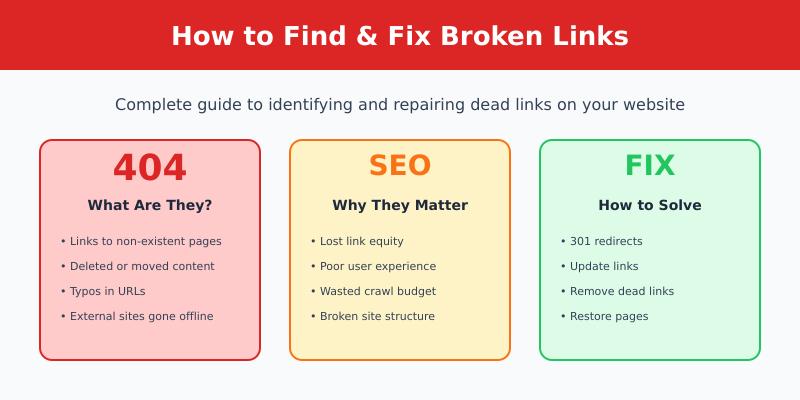
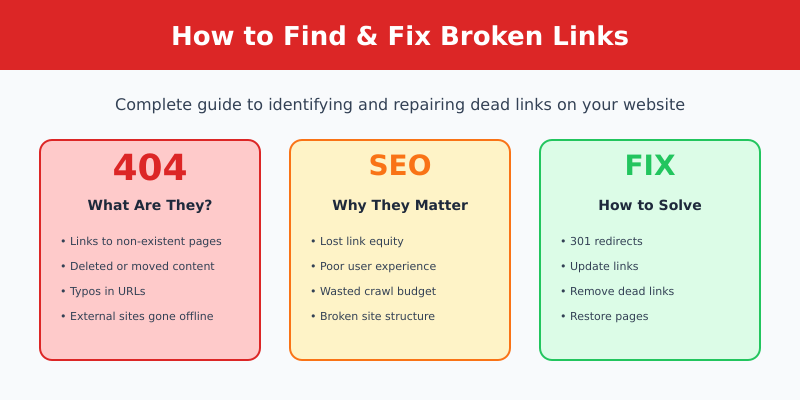
    A broken link (also called a “dead link”) is a hyperlink that points to a page or resource that no longer exists or can’t be accessed. When someone clicks a broken link, they see an error page instead of the content they expected.

    The most common error is the 404 Not Found page, but broken links can return other errors too:

    Error CodeMeaningCommon Cause
    404Page not foundPage deleted or URL changed
    410Gone (permanently)Content intentionally removed
    500Server errorServer-side problems
    503Service unavailableServer overload or maintenance
    TimeoutNo responseServer too slow or offline

    Internal vs External Broken Links

    Internal broken links point to pages on your own website that no longer exist. These are fully within your control to fix.

    External broken links point to other websites. The linked page may have been deleted, moved, or the entire site might be gone. You can’t fix the destination, but you can update or remove the link.

    Why Broken Links Matter for SEO
    Why Broken Links Hurt Your SEO

    Broken links hurt your website in several ways:

    1. Lost Link Equity

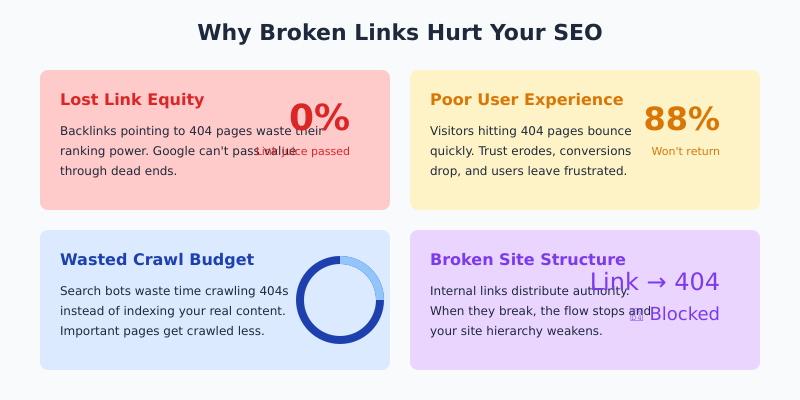
    When external sites link to a page that returns a 404, you lose the “link juice” (ranking power) those backlinks provide. Google can’t pass value through a dead end.

    This is especially painful if you have quality backlinks pointing to pages you’ve deleted or moved without redirects.

    2. Poor User Experience

    Nothing frustrates visitors more than clicking a link and hitting a dead end. Broken links:

    • Increase bounce rates
    • Reduce time on site
    • Damage trust and credibility
    • Lead to lost conversions

    3. Wasted Crawl Budget

    Search engine bots have limited time to crawl your site. Every time they hit a 404, they waste crawl budget that could be spent indexing your actual content.

    For large sites, this can mean important pages get crawled less frequently.

    4. Broken Internal Linking

    Internal links help distribute page authority throughout your site. When internal links break, that flow of authority stops, weakening your site structure.

    What Causes Broken Links?

    Understanding the causes helps prevent future broken links:

    • Deleted pages — Content removed without setting up redirects
    • URL changes — Permalinks changed without redirects
    • Typos — Mistyped URLs when creating links
    • Site migration — Moving to a new domain or CMS without proper redirects
    • External site changes — Other websites delete or move their content
    • Domain expiration — Linked websites go offline permanently
    • Incorrect relative URLs — Links that worked in one location but break when content moves

    How to Find Broken Links
    6 Ways to Find Broken Links

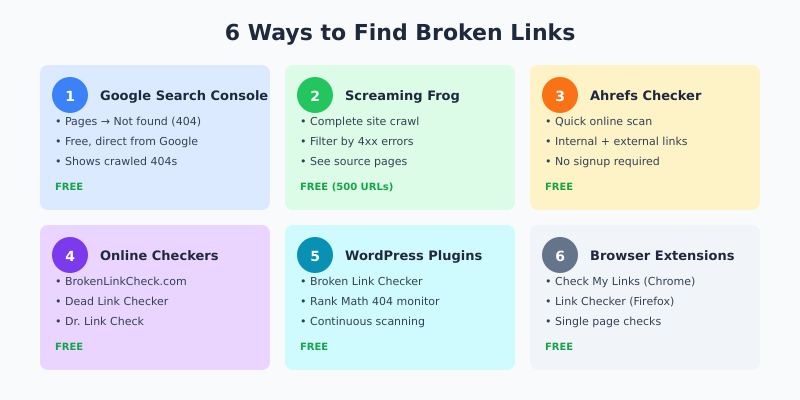
    There are several methods to find broken links on your website, from quick online checks to comprehensive site crawls.

    Method 1: Google Search Console (Free)

    Google Search Console reports crawl errors including 404 pages that Google’s bot has encountered.

    How to check:

    • Go to Google Search Console
    • Navigate to Pages (formerly Index Coverage)
    • Click on Not found (404) in the “Why pages aren’t indexed” section
    • Review the list of 404 URLs

    Limitation: Only shows pages Google tried to crawl — doesn’t catch all internal broken links.

    Method 2: Screaming Frog (Free up to 500 URLs)

    Screaming Frog SEO Spider crawls your entire site and identifies all broken links — both internal and external.

    How to check:

    • Download and open Screaming Frog
    • Enter your website URL and click Start
    • Wait for the crawl to complete
    • Click Response Codes tab
    • Filter by Client Error (4xx)
    • Click any broken URL, then check the Inlinks tab to see which pages link to it

    This is my preferred method because you see exactly which pages contain the broken links.

    Method 3: Ahrefs Broken Link Checker (Free)

    Ahrefs Broken Link Checker is a free online tool that quickly scans any website for broken links.

    How to use:

    • Enter your domain
    • Click “Check broken links”
    • Review the results showing broken internal and external links

    Quick and easy, but limited depth compared to a full crawl.

    Method 4: Online Broken Link Checkers

    Several free online tools can scan your site for broken links:

    These are good for quick checks but may miss links on JavaScript-heavy pages.

    Method 5: WordPress Plugins

    If you use WordPress, dedicated plugins can monitor your site for broken links:

    • Broken Link Checker — Monitors posts, pages, and comments for broken links
    • Rank Math — Includes 404 monitoring in the free version
    • Yoast SEO Premium — Redirects manager helps fix broken links

    Warning: The Broken Link Checker plugin can slow down your site if you have lots of content. Consider running it periodically rather than continuously.

    Method 6: Browser Extensions

    For checking individual pages:

    • Check My Links (Chrome) — Highlights broken links on any page
    • Link Checker (Firefox) — Similar functionality for Firefox users

    Great for spot-checking important pages after updates.

    How to Fix Broken Links
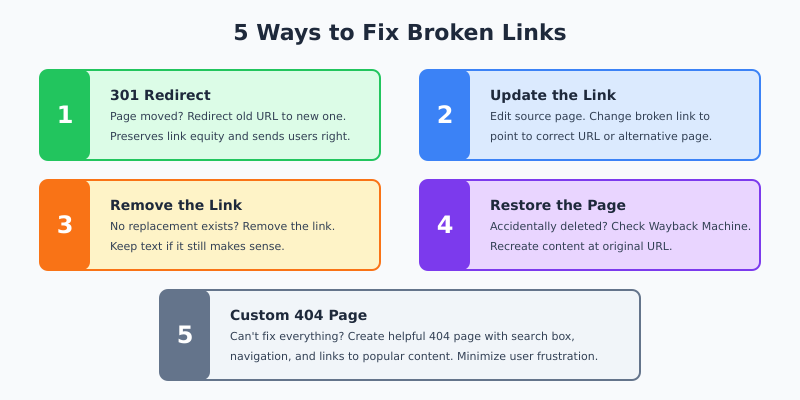
    5 Ways to Fix Broken Links

    Once you’ve found broken links, here’s how to fix them based on the situation:

    Fix 1: Set Up 301 Redirects

    If you moved or renamed a page, redirect the old URL to the new one. This preserves link equity and sends visitors to the right place.

    In WordPress:

    • Use Rank Math’s redirect manager (free)
    • Use Yoast SEO Premium’s redirect feature
    • Use the Redirection plugin (free)

    In .htaccess (Apache):

    Redirect 301 /old-page/ https://yoursite.com/new-page/

    In nginx:

    rewrite ^/old-page/$ /new-page/ permanent;

    Fix 2: Update the Link

    If you have internal links pointing to a deleted page, update them to point to a relevant existing page.

    Steps:

    • Find all pages linking to the broken URL (Screaming Frog’s Inlinks tab helps)
    • Edit each page
    • Update the link to point to the correct URL

    For external broken links, either find the new URL (check if the page moved) or link to an alternative resource.

    Fix 3: Remove the Link

    If the linked content no longer exists and there’s no suitable replacement, remove the link entirely. Keep the surrounding text if it still makes sense.

    Fix 4: Restore the Page

    If a page was accidentally deleted and has valuable backlinks, consider restoring it:

    • Check the Wayback Machine for archived versions
    • Recreate the content
    • Publish at the original URL

    This recovers the lost link equity from existing backlinks.

    Fix 5: Create a Custom 404 Page

    You can’t fix every broken link, especially external ones pointing to your site. A helpful 404 page minimizes frustration:

    • Acknowledge the error
    • Provide a search box
    • Link to popular pages or categories
    • Include navigation to help visitors find what they need

    Best Practices for Preventing Broken Links

    Prevention is easier than fixing. Follow these practices to minimize broken links:

    1. Always Redirect When Deleting or Moving Pages

    Before deleting any page, check if it has:

    • Backlinks (check in Google Search Console or Ahrefs)
    • Internal links pointing to it
    • Organic traffic

    If yes, set up a redirect to a relevant page before removing it.

    2. Use Absolute URLs

    Prefer full URLs (https://yoursite.com/page/) over relative URLs (/page/). Absolute URLs are less likely to break during site changes.

    3. Check Links Before Publishing

    Before publishing any content, verify that all links work. Use browser extensions like “Check My Links” for quick verification.

    4. Run Regular Audits

    Schedule periodic broken link audits:

    • Small sites: Monthly
    • Medium sites: Bi-weekly
    • Large sites: Weekly or continuous monitoring

    5. Be Careful with External Links

    External links are beyond your control. To minimize issues:

    • Link to authoritative, established websites
    • Avoid linking to pages likely to change (product pages, news articles)
    • Prefer linking to main pages rather than deep internal pages

    Broken Link Checker Tools Comparison
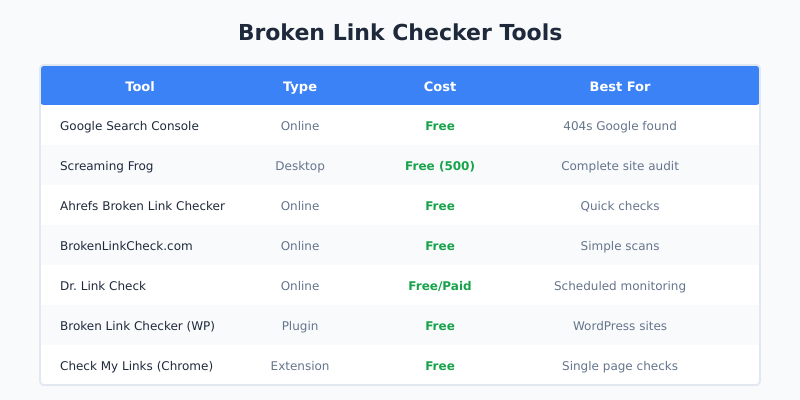
    Broken Link Checker Tools Comparison
    ToolTypeCostBest For
    Google Search ConsoleOnlineFree404s Google found
    Screaming FrogDesktopFree (500 URLs)Complete site audit
    Ahrefs Broken Link CheckerOnlineFreeQuick checks
    BrokenLinkCheck.comOnlineFreeSimple scans
    Dr. Link CheckOnlineFree/PaidScheduled monitoring
    Broken Link Checker (WP)PluginFreeWordPress sites
    Check My LinksExtensionFreeSingle page checks

    FAQ

    Do broken links hurt SEO?

    Yes. Broken internal links waste crawl budget and break your site’s link structure. Broken pages that have backlinks lose the ranking value those links provide. Google has confirmed that excessive 404 errors can indicate poor site quality.

    How many broken links are too many?

    Even one broken link on an important page is too many. For the overall site, aim for zero broken links to internal pages. Some broken external links are inevitable over time, but fix them when discovered.

    Should I use 301 or 302 redirects for broken links?

    Use 301 (permanent) redirects in almost all cases. A 301 tells search engines the page has permanently moved and passes link equity to the new URL. Only use 302 (temporary) if you genuinely plan to restore the original page soon.

    How often should I check for broken links?

    At minimum, monthly. Large or frequently updated sites should check weekly. After any major site changes (redesign, migration, URL restructure), do a complete broken link audit immediately.

    What if I can’t find a replacement for a broken external link?

    Check the Wayback Machine to see what the page contained. Then either find similar content elsewhere to link to, or remove the link and adjust the surrounding text. Don’t leave broken links just because you can’t find a perfect replacement.

    Final Thoughts

    Broken links accumulate over time on every website. External sites change, pages get deleted, URLs get updated — it happens. The key is catching and fixing them before they harm your SEO and user experience.

    Start with Google Search Console to see what Google has already found. Then run a complete crawl with Screaming Frog for the full picture. Set up 301 redirects for moved content, update links to deleted pages, and create a helpful 404 page for anything you can’t fix.

    Make broken link audits part of your regular SEO maintenance. It’s one of those small tasks that compounds over time — fix them now, and you won’t have a massive cleanup job later.

    I find and fix broken links as part of every technical SEO audit. This guide reflects the process I use for my own sites and client work.
  • Screaming Frog Pricing Explained: Is the Paid Version Worth It? (2026)

    Screaming Frog Pricing Explained: Is the Paid Version Worth It? (2026)

    If you’ve spent any time doing technical SEO, you’ve probably heard of Screaming Frog SEO Spider. It’s the go-to desktop crawler for SEO professionals worldwide. But here’s the question I get asked all the time: is the paid version worth $259 per year when there’s a free version available?

    I’ve been using Screaming Frog for over 7 years now. I’ve crawled thousands of websites with both the free and paid versions. In this article, I’ll break down exactly what you get with each option, the hidden limitations of the free version, and help you decide if upgrading makes sense for your situation.

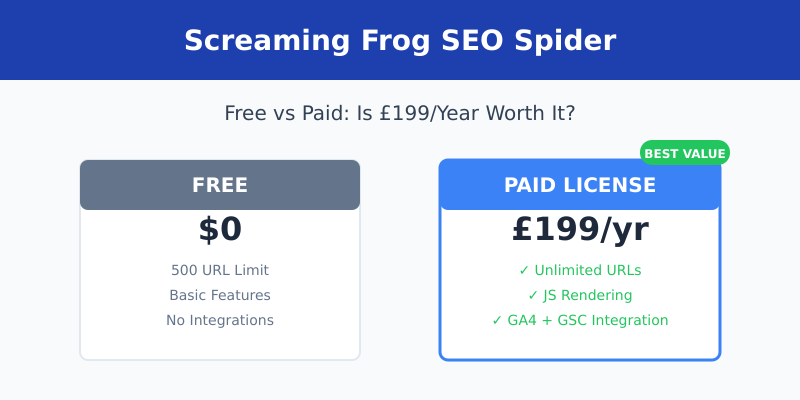
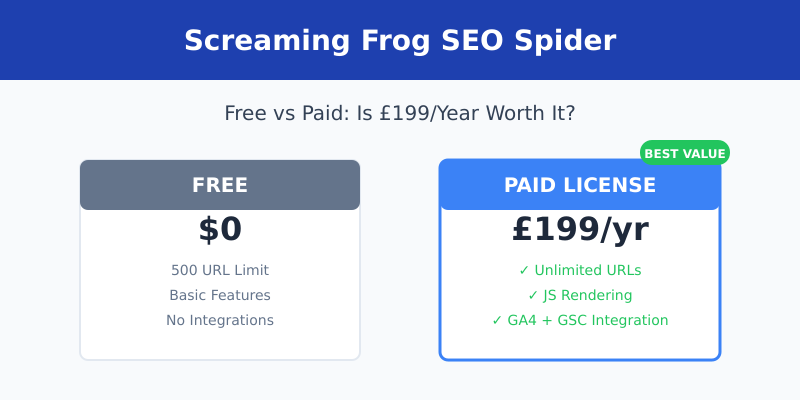
    Screaming Frog free vs paid pricing comparison showing £199/year for unlimited features

    Screaming Frog Pricing Overview

    Let’s start with the basics. Screaming Frog offers two pricing tiers:

    VersionPriceURL LimitBest For
    Free$0500 URLsSmall sites, quick audits
    Paid License£199/year (~$259)UnlimitedProfessional SEO work

    The paid license is billed annually. There’s no monthly option, which can be a barrier for freelancers just starting out. However, if you purchase 5 or more licenses, you get bulk discounts — useful for agencies.

    What the Free Version Actually Includes

    The free version of Screaming Frog is genuinely useful — not a crippled demo. Here’s what you can do without paying anything:

    • Crawl up to 500 URLs per crawl
    • Find broken links (4xx and 5xx errors)
    • Analyze page titles and meta descriptions
    • Find duplicate content issues
    • Check redirect chains
    • Review heading structure (H1, H2, etc.)
    • Identify missing alt text on images
    • Export basic reports

    For a small blog or portfolio site under 500 pages, this is often enough. I still use the free version for quick sanity checks on smaller client sites.

    What You Unlock with the Paid License

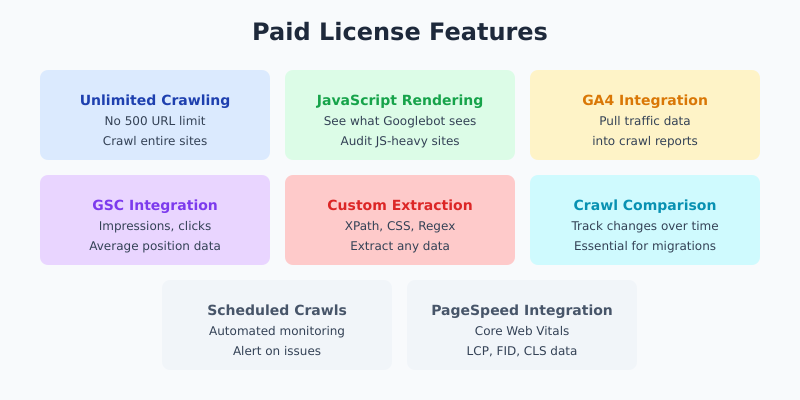
    Here’s where things get interesting. The paid version doesn’t just remove the URL limit — it adds features that fundamentally change how you can use the tool.

    Screaming Frog paid license features including unlimited crawling, JavaScript rendering, and integrations

    Unlimited Crawling

    The 500 URL limit sounds reasonable until you realize how quickly you hit it. A typical e-commerce site with product pages, category pages, and blog posts can easily have 5,000-50,000+ URLs. Even a medium-sized business site often exceeds 500 pages when you count all the subpages.

    JavaScript Rendering

    This is the feature I use most. Modern websites rely heavily on JavaScript to load content. Without JS rendering, Screaming Frog only sees the raw HTML — missing dynamically loaded content, navigation menus, and sometimes entire page sections.

    With the paid version, you can render JavaScript just like Googlebot does. This is essential for auditing React, Vue, Angular, or any JS-heavy site.

    Google Analytics Integration

    Connect your GA4 account directly to Screaming Frog. This lets you pull traffic data, bounce rates, and engagement metrics directly into your crawl. You can quickly identify pages that get traffic but have technical issues, or pages with zero traffic that might need attention.

    Google Search Console Integration

    Similarly, you can connect GSC to see impressions, clicks, and average position for each URL. This turns Screaming Frog from a technical crawler into a strategic SEO tool. I use this constantly to find pages ranking on page 2 that need optimization.

    PageSpeed Insights Integration

    Pull Core Web Vitals data (LCP, FID, CLS) directly into your crawl. No more checking pages one by one in PageSpeed Insights. You can audit an entire site’s performance in one go.

    Custom Extraction

    Extract any data from pages using XPath, CSS selectors, or regex. I use this to pull:

    • Product prices from e-commerce sites
    • Author names from blog posts
    • Schema markup data
    • Custom tracking codes
    • Any element you need to audit at scale

    Crawl Comparison

    Save crawls and compare them over time. This is invaluable for site migrations. I’ve used this feature to verify that hundreds of redirects were implemented correctly and no pages were accidentally dropped.

    Scheduled Crawls

    Set up automated crawls that run on a schedule. Get alerts when issues appear. This turns Screaming Frog into a monitoring tool, not just an audit tool.

    Free vs Paid: Complete Feature Comparison

    FeatureFreePaid (£199/yr)
    URL crawl limit500Unlimited
    Broken link checking
    Title/meta analysis
    JavaScript rendering
    Google Analytics integration
    Search Console integration
    PageSpeed integration
    Custom extraction
    Crawl comparison
    Scheduled crawls
    Save crawls
    XML sitemap generation
    AMP validation
    Structured data validation

    Hidden Costs to Consider

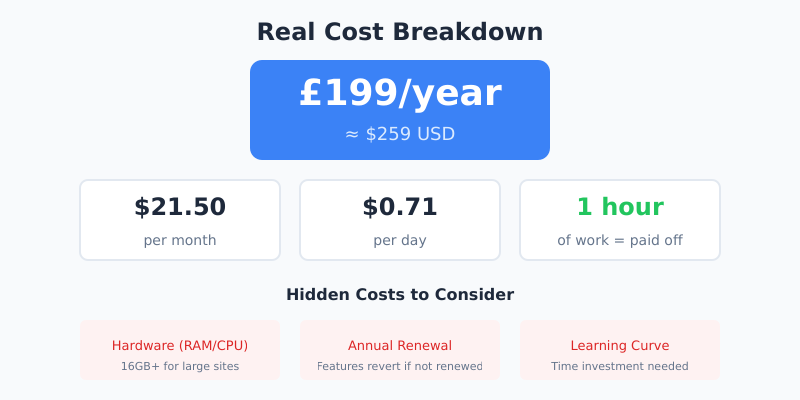
    The license fee is straightforward, but there are a few hidden costs:

    Screaming Frog real cost breakdown showing £199/year equals $21.50/month or $0.71/day

    Hardware Requirements

    Screaming Frog runs on your computer, using your RAM and CPU. Crawling large sites (50,000+ URLs) with JavaScript rendering requires serious hardware. I recommend:

    • Minimum: 8GB RAM for sites under 10,000 URLs
    • Recommended: 16GB+ RAM for larger sites
    • JavaScript rendering: Even more RAM and a decent CPU

    If your laptop struggles with large crawls, that’s an indirect cost of the tool.

    Annual Renewal

    The license is annual. If you don’t renew, you keep the software but lose access to updates and the paid features revert to free-version limits. You’re essentially renting the advanced features.

    Learning Curve

    Screaming Frog has a steep learning curve. It’s not a tool you’ll master in an afternoon. Budget time for learning, or you won’t get full value from your investment.

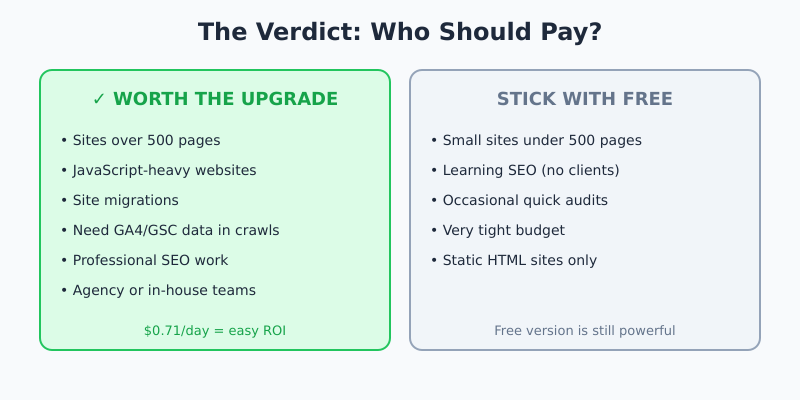
    Is It Worth the Price? My Honest Assessment

    Here’s my take after 7+ years of using Screaming Frog professionally:

    Screaming Frog verdict showing who should upgrade vs stick with free version

    The paid version is absolutely worth it if:

    • You work with sites over 500 pages (most business sites)
    • You audit JavaScript-heavy websites
    • You handle site migrations
    • You want to combine crawl data with analytics/GSC data
    • You do SEO professionally (in-house or agency)

    At roughly $259/year, it works out to about $21.50 per month or $0.71 per day. If you bill even one hour of SEO work per month, the tool pays for itself many times over.

    Stick with the free version if:

    • You only manage small sites under 500 pages
    • You’re learning SEO and not doing client work yet
    • You only need occasional quick audits
    • Budget is extremely tight and you can’t justify any tool costs

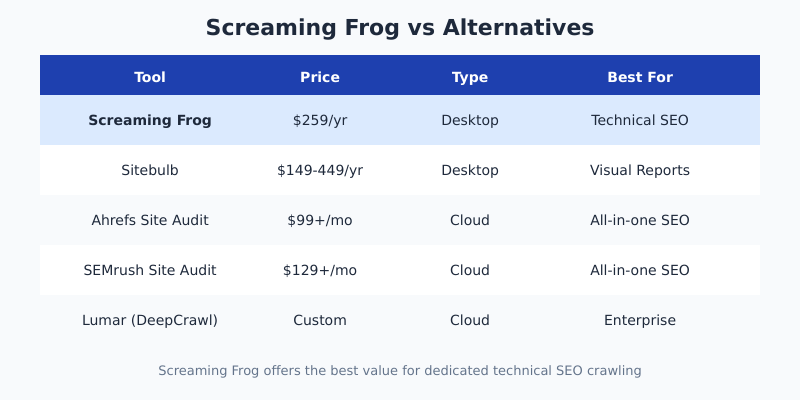
    Screaming Frog vs Alternatives

    How does Screaming Frog compare to other options?

    Screaming Frog vs Sitebulb, Ahrefs, SEMrush and Lumar pricing comparison table
    ToolPriceTypeBest For
    Screaming Frog$259/yrDesktopTechnical SEO audits
    Sitebulb$149-449/yrDesktopVisual reports, hints
    Ahrefs Site Audit$99+/moCloudAll-in-one SEO suite
    SEMrush Site Audit$129+/moCloudAll-in-one SEO suite
    Lumar (DeepCrawl)Custom pricingCloudEnterprise sites

    Screaming Frog offers the best value for dedicated technical SEO crawling. Sitebulb is a worthy alternative with better visualizations. Cloud tools like Ahrefs and SEMrush include crawling but cost significantly more and aren’t as deep for technical audits.

    Tips to Get the Most Value from Your License

    If you decide to buy, here’s how to maximize your ROI:

    1. Learn the integrations — Connect GA4 and GSC immediately. This alone transforms the tool’s usefulness.
    2. Master custom extraction — Spend time learning XPath. You’ll find uses you never imagined.
    3. Save crawl configurations — Create templates for different audit types. Saves hours over time.
    4. Use crawl comparison for migrations — This feature alone can justify the cost for agency work.
    5. Allocate enough RAM — In settings, increase memory allocation for faster, more complete crawls.

    FAQ

    Is Screaming Frog free?

    Yes, there’s a free version that crawls up to 500 URLs with basic features. It’s fully functional for small sites but lacks advanced features like JavaScript rendering, API integrations, and the ability to save crawls.

    How much does Screaming Frog cost per year?

    The paid license costs £199 per year (approximately $259 USD). There’s no monthly option. Bulk discounts are available when purchasing 5 or more licenses, making it more affordable for agencies.

    Can I use Screaming Frog on multiple computers?

    Each license is valid for one machine. If you need to use Screaming Frog on multiple computers, you’ll need separate licenses. However, you can deactivate and reactivate on a different machine if needed.

    What’s the best Screaming Frog alternative?

    Sitebulb is the closest alternative for desktop crawling, offering better visualizations at similar pricing. For cloud-based crawling, Ahrefs and SEMrush include site audit tools but cost more and focus on broader SEO features.

    Is Screaming Frog good for beginners?

    Screaming Frog has a steep learning curve due to its technical nature and extensive features. Beginners can use the free version to learn, but expect to invest time in tutorials. Sitebulb offers a more beginner-friendly interface with guided hints.

    Final Verdict

    Screaming Frog SEO Spider remains one of the best investments in my SEO toolkit. At $259/year, it’s a fraction of what cloud-based SEO suites charge, and nothing else matches its depth for technical crawling.

    If you’re doing SEO professionally — whether in-house, freelance, or agency — the paid version pays for itself quickly. The GA4/GSC integrations alone save hours of manual work. The JavaScript rendering is essential for modern web audits. And crawl comparison is indispensable for migrations.

    Start with the free version to learn the interface. Once you hit that 500 URL limit on a real project, you’ll understand exactly why the upgrade is worth it.

    I buy and test all tools myself. This review is based on 7+ years of professional use across hundreds of client sites.