A technical SEO audit is the foundation of any successful SEO strategy. Without it, you’re optimizing blindly — hoping content improvements will work while hidden technical issues silently tank your rankings.
I’ve performed hundreds of technical audits over the past 10 years. Some sites had obvious issues. Others looked fine on the surface but had crawlability problems that blocked 40% of their pages from Google’s index.
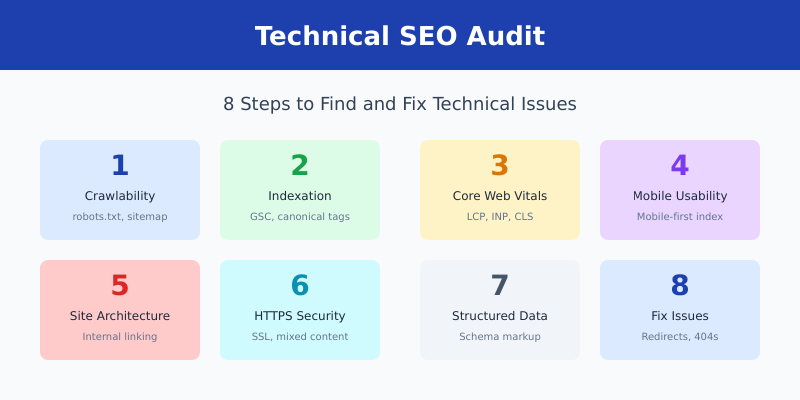
This guide walks you through a complete technical SEO audit — step by step. You’ll learn exactly what to check, which tools to use (mostly free), and how to prioritize fixes that actually move the needle.

What Is a Technical SEO Audit?
A technical SEO audit analyzes your website’s infrastructure to identify issues that prevent search engines from crawling, indexing, and ranking your pages effectively.
Unlike content audits (which focus on keywords and quality) or backlink audits (which analyze your link profile), technical audits focus on:
- Crawlability — Can search engines access your pages?
- Indexability — Are your pages being added to Google’s index?
- Site speed — Do pages load fast enough for users and Google?
- Mobile experience — Does your site work well on phones?
- Site architecture — Is your internal linking structure logical?
- Security — Is HTTPS properly implemented?
Tools You’ll Need
Good news: you can perform a thorough technical audit with mostly free tools. Here’s what I use:
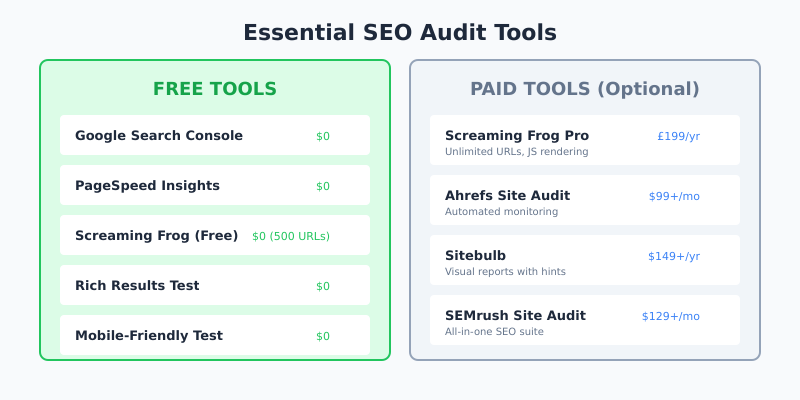
Free Tools
| Tool | Purpose | Cost |
|---|---|---|
| Google Search Console | Indexing, crawl errors, Core Web Vitals | Free |
| PageSpeed Insights | Performance testing, Core Web Vitals | Free |
| Screaming Frog (free version) | Crawl up to 500 URLs | Free |
| Mobile-Friendly Test | Mobile usability check | Free |
| Rich Results Test | Structured data validation | Free |
Paid Tools (Optional)
For larger sites or deeper analysis:
- Screaming Frog (£199/year) — Unlimited crawling, JS rendering
- Ahrefs Site Audit ($99+/month) — Automated monitoring
- Sitebulb ($149+/year) — Visual reports with hints
Step 1: Check Crawlability
If Google can’t crawl your pages, nothing else matters. Start here.
Review robots.txt
Your robots.txt file tells search engines what they can and can’t crawl. Check it at yoursite.com/robots.txt.
Look for:
- Accidental
Disallow: /blocking your entire site - Important directories being blocked (like
/blog/or/products/) - CSS/JS files being blocked (breaks rendering)
- Missing or incorrect sitemap reference
Check XML Sitemap
Your sitemap helps Google discover pages. Usually at yoursite.com/sitemap.xml.
Verify:
- Sitemap exists and is accessible
- All important pages are included
- No 404 or redirected URLs in sitemap
- Sitemap is submitted in Google Search Console
- Last modified dates are accurate
Run a Crawl
Use Screaming Frog (free for up to 500 URLs) to crawl your site. This reveals:
- Broken links (4xx errors)
- Server errors (5xx errors)
- Redirect chains and loops
- Orphan pages (no internal links pointing to them)
- Crawl depth issues
Step 2: Analyze Indexation
Crawlability ≠ indexability. Google might crawl a page but choose not to index it.
Check Index Coverage in GSC
In Google Search Console, go to Pages (formerly Index Coverage). Look for:
- Not indexed pages — Why are they excluded?
- “Crawled – currently not indexed” — Google found it but didn’t think it was worth indexing
- “Discovered – currently not indexed” — Google knows about it but hasn’t crawled yet
- Duplicate pages — Canonicalization issues
Review Meta Robots Tags
Check that important pages don’t have noindex tags blocking indexation.
In Screaming Frog, filter by “Noindex” to find pages accidentally blocked. Common culprits:
- Staging site settings left on after launch
- CMS plugins adding noindex to pagination
- Developer testing not reverted
Check Canonical Tags
Canonical tags tell Google which version of a page is the “master.” Problems occur when:
- Pages canonical to themselves incorrectly
- Canonicals point to non-existent pages
- HTTP pages canonical to HTTPS (or vice versa)
- Multiple canonical tags on one page
Step 3: Audit Core Web Vitals
Core Web Vitals are Google’s page experience metrics. In 2024, INP (Interaction to Next Paint) replaced FID as the responsiveness metric.
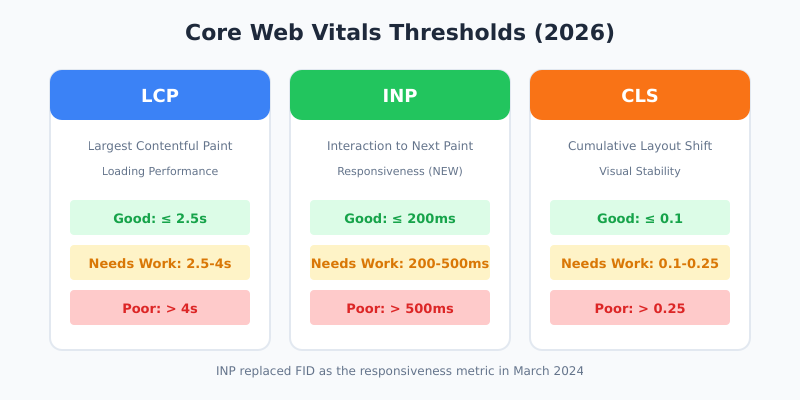
The Three Metrics
| Metric | What It Measures | Good Score |
|---|---|---|
| LCP | Loading performance | ≤ 2.5 seconds |
| INP | Responsiveness to interactions | ≤ 200 milliseconds |
| CLS | Visual stability | ≤ 0.1 |
How to Check
Field data (real users):
- Google Search Console → Core Web Vitals report
- PageSpeed Insights → “Field Data” section
Lab data (simulated):
- PageSpeed Insights → “Lab Data” section
- Chrome DevTools → Lighthouse
Focus on field data — that’s what Google uses for ranking.
Common Issues and Fixes
Poor LCP:
- Optimize largest image (compress, use WebP)
- Preload critical resources
- Reduce server response time (TTFB)
- Remove render-blocking resources
Poor INP:
- Reduce JavaScript execution time
- Break up long tasks
- Optimize event handlers
- Reduce main thread work
Poor CLS:
- Set explicit dimensions on images/videos
- Reserve space for ads and embeds
- Avoid inserting content above existing content
- Use CSS transforms instead of layout-changing properties
Step 4: Check Mobile Usability
Google uses mobile-first indexing — your mobile site is what gets ranked. Over 60% of searches happen on mobile devices.
Mobile Usability Report
In Google Search Console, check the Mobile Usability report for issues like:
- Text too small to read (minimum 16px)
- Clickable elements too close together (minimum 44px tap targets)
- Content wider than screen
- Viewport not configured
Manual Testing
Don’t just rely on tools. Actually use your site on a phone:
- Can you navigate easily?
- Do forms work properly?
- Are images properly sized?
- Does the menu function correctly?
Step 5: Audit Site Architecture
Good site architecture helps users and search engines find content efficiently.
Check Crawl Depth
Important pages should be reachable within 3 clicks from the homepage. In Screaming Frog, check the “Crawl Depth” column.
Guidelines:
- Homepage = depth 0
- Main categories = depth 1
- Subcategories/posts = depth 2-3
- Anything deeper than 4 may struggle to rank
Internal Linking
Internal links distribute “link equity” and help Google understand page relationships.
Check for:
- Orphan pages — pages with no internal links pointing to them
- Broken internal links — links pointing to 404 pages
- Important pages with few links — your best content should have the most internal links
URL Structure
URLs should be clean, descriptive, and consistent:
- Use hyphens, not underscores
- Keep URLs short and readable
- Include target keywords naturally
- Avoid unnecessary parameters
- Use lowercase only
Step 6: Review HTTPS and Security
HTTPS is a ranking factor and essential for user trust.
HTTPS Checklist
- SSL certificate is valid and not expired
- All pages redirect HTTP → HTTPS
- No mixed content warnings (HTTP resources on HTTPS pages)
- Internal links use HTTPS
- Canonical tags use HTTPS
- Sitemap uses HTTPS URLs
Step 7: Check Structured Data
Structured data (Schema markup) helps Google understand your content and can enable rich results in search.
Common Schema Types
- Article — for blog posts
- Product — for e-commerce
- FAQ — for FAQ sections
- HowTo — for tutorials
- LocalBusiness — for local SEO
- Review — for review content
How to Validate
Use Google’s Rich Results Test to check for errors. Common issues:
- Missing required properties
- Invalid values
- Markup not matching visible content
Step 8: Identify and Fix Technical Issues
Finally, clean up the common technical problems that accumulate on every site.
Broken Links (4xx Errors)
Broken links hurt user experience and waste crawl budget. Fix by:
- Updating links to correct URLs
- Setting up 301 redirects for deleted pages
- Removing links to pages that no longer exist
Redirect Issues
Redirect chains: A → B → C should be A → C
Redirect loops: A → B → A (breaks crawling)
Temporary redirects (302): Use 301 for permanent moves
Duplicate Content
Duplicate content confuses Google about which page to rank. Common causes:
- HTTP and HTTPS versions both accessible
- www and non-www versions both accessible
- URL parameters creating duplicate pages
- Pagination issues
Fix with: canonical tags, 301 redirects, or parameter handling in GSC.
Technical SEO Audit Checklist
Here’s a quick reference checklist you can use for every audit:
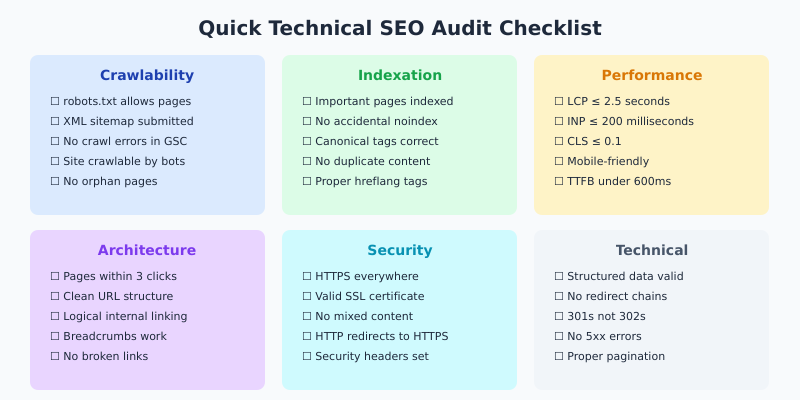
Crawlability
- ☐ robots.txt allows important pages
- ☐ XML sitemap exists and is submitted
- ☐ No crawl errors in GSC
- ☐ Site is crawlable (test with Screaming Frog)
Indexation
- ☐ Important pages are indexed
- ☐ No accidental noindex tags
- ☐ Canonical tags are correct
- ☐ No duplicate content issues
Performance
- ☐ LCP ≤ 2.5 seconds
- ☐ INP ≤ 200 milliseconds
- ☐ CLS ≤ 0.1
- ☐ Mobile-friendly
Architecture
- ☐ Important pages within 3 clicks
- ☐ No orphan pages
- ☐ Clean URL structure
- ☐ Logical internal linking
Security & Technical
- ☐ HTTPS properly implemented
- ☐ No mixed content
- ☐ No broken links
- ☐ No redirect chains/loops
- ☐ Structured data validates
How Often Should You Audit?
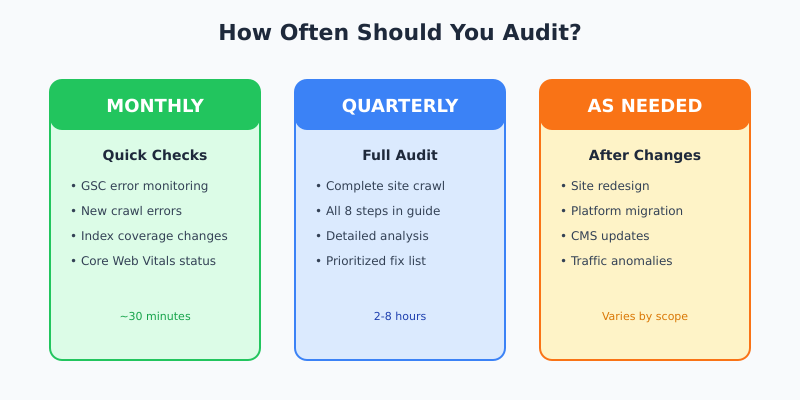
Monthly: Quick checks in GSC for new errors
Quarterly: Full technical audit
After major changes: Site redesign, migration, CMS update
Set up monitoring in Google Search Console to catch issues as they appear, rather than waiting for the next scheduled audit.
FAQ
How long does a technical SEO audit take?
For a small site (under 500 pages), expect 2-4 hours. Medium sites (500-5,000 pages) take 4-8 hours. Large enterprise sites can take days to audit thoroughly. The crawl itself might take hours for very large sites.
Can I do a technical SEO audit without paid tools?
Yes. Google Search Console, PageSpeed Insights, and Screaming Frog’s free version (500 URL limit) cover most needs. You’ll only need paid tools for sites larger than 500 pages or advanced features like JavaScript rendering.
What’s the most important thing to fix first?
Crawlability and indexation issues. If Google can’t crawl or index your pages, nothing else matters. Fix robots.txt blocks, noindex tags, and major crawl errors before worrying about page speed or structured data.
Do I need to hire an SEO agency for a technical audit?
Not necessarily. If you’re comfortable with the tools and concepts in this guide, you can do it yourself. However, for large or complex sites — especially e-commerce or enterprise — professional help can save time and catch issues you might miss.
What’s the difference between technical SEO and on-page SEO?
Technical SEO focuses on site infrastructure: crawlability, indexation, speed, and architecture. On-page SEO focuses on content optimization: keywords, titles, meta descriptions, and content quality. Both are essential — technical SEO creates the foundation for on-page efforts to succeed.
Final Thoughts
A technical SEO audit isn’t a one-time project — it’s an ongoing process. Sites change, content gets added, plugins get updated, and technical debt accumulates.
The good news: once you’ve done a thorough initial audit and fixed the major issues, maintenance is much easier. Set up monitoring, do quarterly check-ins, and address problems as they arise.
Start with crawlability — that’s the foundation. Then work through indexation, Core Web Vitals, and the other checks in this guide. Prioritize issues that affect the most pages or your most important content.
Technical SEO isn’t glamorous, but it’s often the difference between sites that rank and sites that don’t.
I perform technical audits for clients regularly. This guide reflects real-world experience from hundreds of site audits over 10+ years.