Tag: seo

  • Internal Linking Strategy: How to Build a Strong Link Structure for SEO

    Internal Linking Strategy: How to Build a Strong Link Structure for SEO

    Internal linking is one of the most underutilized SEO tactics. While everyone focuses on building backlinks, the links within your own site often get ignored — even though you have complete control over them.

    A solid internal linking strategy helps search engines understand your site structure, distributes authority to important pages, and keeps users engaged longer. I’ve seen sites significantly improve their rankings just by fixing their internal link structure.

    This guide covers everything you need to know about internal linking for SEO in 2026 — from the fundamentals to advanced strategies you can implement today.
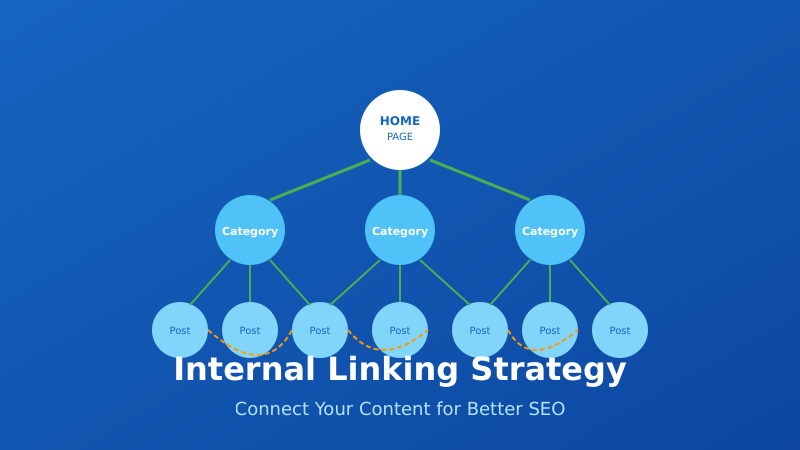
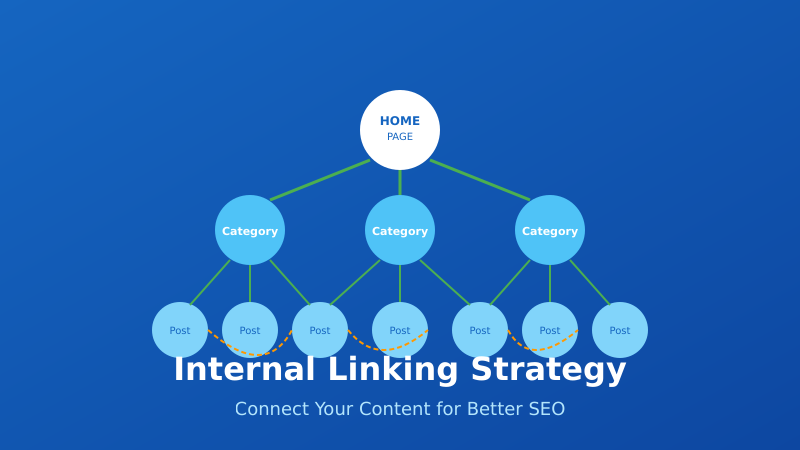
    Internal Linking Strategy - Connect Your Content for Better SEO

    What Are Internal Links?

    Internal links are hyperlinks that point from one page on your website to another page on the same website. They’re different from external links (which point to other websites) and backlinks (which come from other websites to yours).

    Examples of internal links:

    • Navigation menus — Links in your header, footer, and sidebar
    • Contextual links — Links within your content that point to related pages
    • Breadcrumbs — Navigation showing the page’s location in site hierarchy
    • Related posts — Links to similar content at the end of articles
    • Category/tag links — Links to taxonomy archive pages

    Contextual links (links within your main content) are the most valuable for SEO because they carry more weight than navigational links.

    Why Internal Linking Matters for SEO
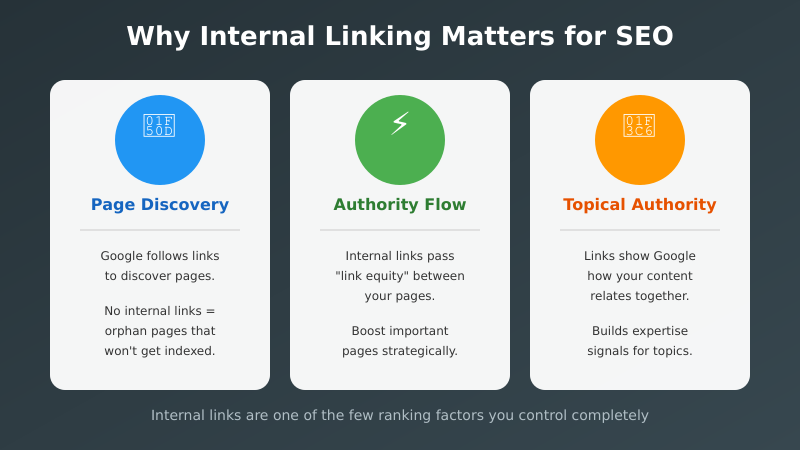
    Why Internal Linking Matters - Page Discovery, Authority Flow, and Topical Authority

    Internal links serve three critical functions for search engine optimization:

    1. Help Search Engines Discover Pages

    Google discovers new pages by following links. If a page has no internal links pointing to it (an “orphan page”), Google may never find it — or take much longer to index it.

    Your XML sitemap helps with discovery, but internal links are still essential for showing Google which pages are important.

    2. Distribute Link Authority (PageRank)

    When a page earns backlinks, it gains authority. Internal links pass some of that authority to other pages on your site. This is sometimes called “link equity” or “link juice.”

    Strategic internal linking lets you channel authority from high-performing pages to pages you want to rank better. Your homepage typically has the most authority — linking from it to important pages boosts their ranking potential.

    3. Establish Topical Authority

    Internal links help Google understand the relationships between your pages. When you link related content together, you signal topical expertise.

    In 2026, with AI-powered search becoming more prevalent, logical content architecture is even more important. Search engines and AI systems need to understand how concepts on your site relate to each other.

    Internal Linking Strategies
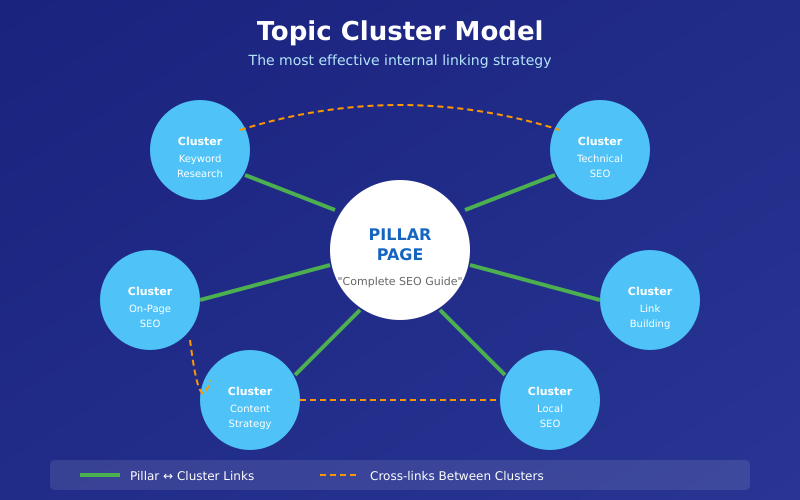
    Topic Cluster Model - The Most Effective Internal Linking Strategy

    There are several approaches to structuring your internal links. The best strategy depends on your site type and goals.

    Topic Clusters (Hub and Spoke)

    The most effective modern approach is the topic cluster model:

    • Pillar page — A comprehensive guide covering a broad topic
    • Cluster pages — Supporting articles that dive deep into subtopics
    • Internal links — The pillar links to all cluster pages, and they link back

    Example: A pillar page about “SEO” links to cluster pages about keyword research, technical SEO, link building, on-page optimization, etc. Each cluster page links back to the pillar and to related cluster pages.

    This structure:

    • Establishes topical authority
    • Creates clear content hierarchy
    • Distributes authority efficiently
    • Helps users find related content

    Silo Structure

    Similar to topic clusters, but more rigid. Content is organized into strict categories (silos), and pages only link within their silo — not across silos.

    This works well for large sites with distinct product categories or service areas. It keeps topical relevance tight but can feel artificial if overdone.

    Cornerstone Content

    Identify your most important pages (cornerstone content) and ensure they receive the most internal links. These are typically:

    • Your best, most comprehensive content
    • Pages targeting your most valuable keywords
    • Pages you most want to rank

    Every time you publish related content, link to your cornerstone pages. This concentrates authority where it matters most.

    Internal Linking Best Practices
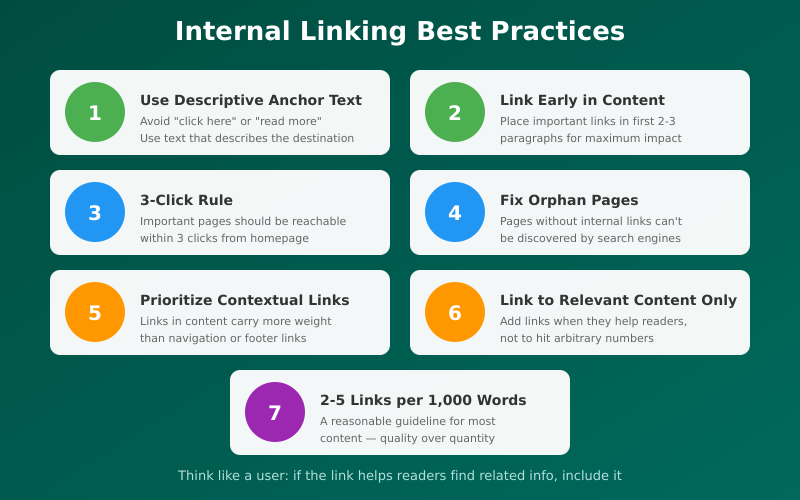
    Internal Linking Best Practices - 7 Key Guidelines

    Follow these guidelines for maximum impact:

    1. Use Descriptive Anchor Text

    Anchor text is the clickable text of a link. It should describe what the linked page is about.

    Good: “Learn more about technical SEO audits
    Bad: “Learn more here

    Descriptive anchor text helps both users and search engines understand the destination page’s topic. Avoid generic phrases like “click here,” “read more,” or “this article.”

    2. Link Early in Content

    Google gives more weight to links that appear earlier on a page. Place your most important internal links within the first 2-3 paragraphs when possible.

    This also improves user engagement — readers are more likely to click links they encounter early.

    3. Keep Important Pages Within 3 Clicks

    Users (and search engines) should be able to reach any important page within 3 clicks from your homepage. This is sometimes called “crawl depth.”

    Deep pages (many clicks from homepage) receive less authority and may be crawled less frequently. If you have important content buried deep in your site structure, add more internal links to bring it closer to the surface.

    4. Fix Orphan Pages

    Orphan pages have no internal links pointing to them. They’re difficult for Google to discover and typically don’t rank.

    Use tools like Screaming Frog to identify orphan pages, then add internal links to them from relevant content.

    5. Prioritize Contextual Links

    Links within your main content (contextual links) carry more weight than links in navigation, sidebars, or footers. These “boilerplate” links appear on every page, so they’re less valuable signals.

    Focus on adding relevant contextual links within your articles and pages.

    6. Link to Relevant Content Only

    Only link when it makes sense for the reader. Forced or irrelevant links hurt user experience and can confuse search engines about your page topics.

    Ask yourself: “Would a reader find this link helpful?” If not, don’t add it.

    7. Use a Reasonable Number of Links

    There’s no magic number, but a good guideline is 2-5 internal links per 1,000 words. More is fine if they’re all relevant, but don’t stuff links just to hit a number.

    Too many links dilute the authority passed to each one and can overwhelm readers.

    How to Audit Your Internal Links
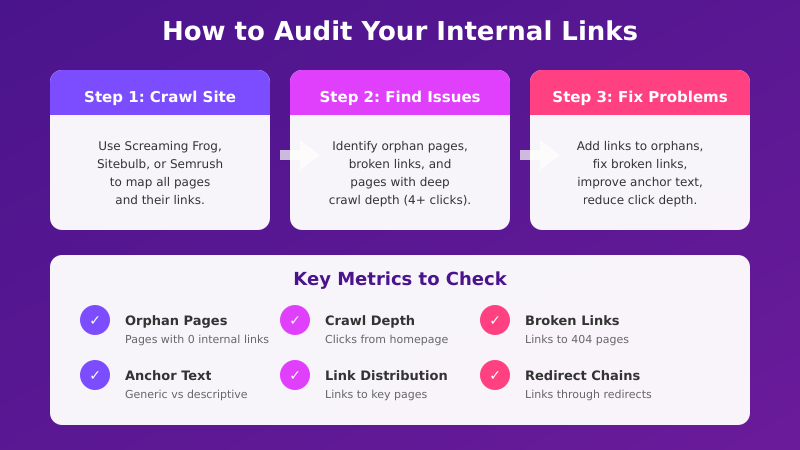
    How to Audit Your Internal Links - Step by Step Process

    Regular audits help you identify and fix internal linking issues. Here’s how to conduct one:

    Step 1: Crawl Your Site

    Use a crawler like Screaming Frog, Sitebulb, or Semrush to map all your pages and their internal links. This gives you a complete picture of your link structure.

    Step 2: Find Orphan Pages

    Look for pages with zero internal links pointing to them. These need to be connected to your site structure.

    Step 3: Identify High-Authority Pages

    Check Google Search Console or your analytics to find pages with the most backlinks or traffic. These are your authority sources — make sure they link to pages you want to boost.

    Step 4: Check Crawl Depth

    Find pages that are more than 3 clicks from your homepage. Either add more links to reduce depth, or evaluate whether these pages are still important.

    Step 5: Review Anchor Text

    Look for generic anchor text (“click here,” “read more”) and replace with descriptive text. Also check for over-optimized anchors (exact-match keywords used excessively).

    Step 6: Fix Broken Internal Links

    Identify links pointing to pages that no longer exist (404 errors) or redirect. Update them to point to the correct URLs. Learn more about finding and fixing broken links.

    Internal Linking Tools

    These tools help you analyze and improve your internal link structure:

    ToolBest ForPrice
    Screaming FrogComprehensive site crawlingFree (500 URLs) / £199/year
    SemrushInternal link audit reportsFrom $139/month
    AhrefsLink opportunity suggestionsFrom $129/month
    SitebulbVisual link structure analysisFrom $13.50/month
    Link WhisperWordPress internal link suggestions$77/year
    Yoast SEOBasic WordPress linking featuresFree / $99/year

    For most sites, Screaming Frog’s free version combined with Google Search Console provides enough data to audit and improve internal linking.

    Common Internal Linking Mistakes

    Avoid these frequent errors:

    Orphan Pages

    Pages with no internal links can’t pass a technical SEO audit. Every important page needs at least one internal link pointing to it.

    Generic Anchor Text

    “Click here” and “read more” waste an opportunity to signal relevance. Use descriptive text that tells users and search engines what to expect.

    Broken Links

    Links to deleted or moved pages hurt user experience and waste crawl budget. Audit regularly and fix promptly.

    Too Many Links

    Stuffing pages with links dilutes authority and overwhelms readers. Link when relevant, not to hit arbitrary numbers.

    Ignoring New Content

    When you publish new content, don’t just add links from it — also update older content to link to the new page. This two-way linking accelerates indexing and authority building.

    Linking Only from Navigation

    Navigation links are important but not sufficient. Contextual links within content carry more SEO weight.

    FAQ

    How many internal links should I have per page?

    There’s no fixed number. A good guideline is 2-5 links per 1,000 words, but quality matters more than quantity. Add links when they help the reader find relevant content. Don’t force links just to hit a target number.

    Should I use nofollow on internal links?

    Almost never. Nofollow tells search engines not to pass authority through the link. For internal links, you want authority to flow freely. The only exception might be links to login pages or other pages you don’t want indexed.

    Do internal links help with rankings?

    Yes. Internal links help search engines discover pages, understand site structure, and distribute authority. Pages with more quality internal links typically rank better than orphan pages, assuming the content quality is similar.

    Should anchor text be exact match keywords?

    Not always. Use natural, descriptive anchor text that includes relevant keywords but reads naturally. Varying your anchor text looks more natural than using the exact same phrase every time. Over-optimization can look spammy.

    How often should I audit internal links?

    For most sites, quarterly audits work well. Larger sites that publish frequently might benefit from monthly checks. At minimum, audit whenever you delete pages or make significant structural changes.

    Final Thoughts

    Internal linking is one of the few SEO factors you control completely. You don’t need to convince anyone to link to you — you just need to link to yourself strategically.

    Start with the basics: fix orphan pages, use descriptive anchor text, and ensure important pages are within 3 clicks of your homepage. Then build out topic clusters to establish topical authority.

    The key is to think like a user. Link when it helps readers find related information. If your internal links make sense for humans, they’ll make sense for search engines too.

    I audit internal links as part of every SEO project. Small improvements to link structure often deliver surprisingly large ranking gains — it’s one of the highest-ROI activities in SEO.
  • XML Sitemap Guide: What It Is and How to Create One

    XML Sitemap Guide: What It Is and How to Create One

    An XML sitemap is one of the most fundamental — yet often misunderstood — elements of technical SEO. It’s a simple file that can significantly improve how search engines discover and index your content.

    I’ve set up sitemaps for hundreds of websites over the years. This guide covers everything you need to know: what XML sitemaps are, why they matter, how to create one, and the best practices that actually make a difference in 2026.

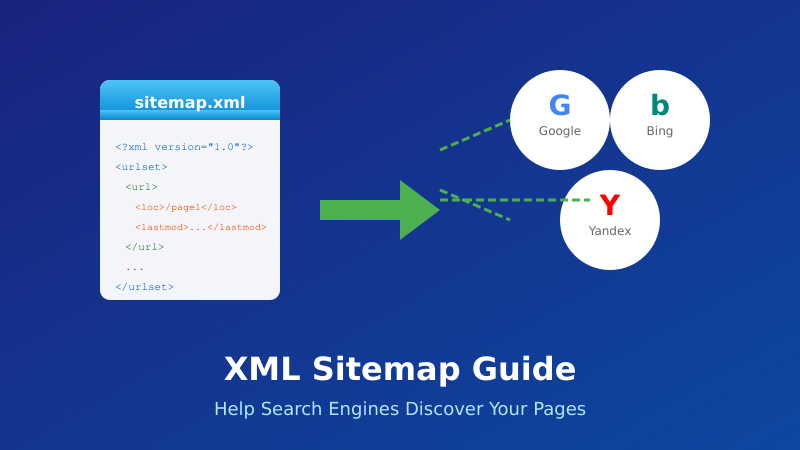
    XML Sitemap Guide - Help Search Engines Discover Your Pages

    What Is an XML Sitemap?

    An XML sitemap is a file that lists all the important URLs on your website. It acts as a roadmap for search engine crawlers, telling them what pages exist and where to find them.

    Here’s what a basic XML sitemap looks like:

    <?xml version="1.0" encoding="UTF-8"?>
    <urlset xmlns="http://www.sitemaps.org/schemas/sitemap/0.9">
      <url>
        <loc>https://example.com/</loc>
        <lastmod>2026-01-10</lastmod>
      </url>
      <url>
        <loc>https://example.com/about/</loc>
        <lastmod>2026-01-05</lastmod>
      </url>
    </urlset>

    The sitemap file is typically located at yoursite.com/sitemap.xml.

    XML Sitemap Elements

    ElementRequiredDescription
    <loc>YesThe full URL of the page
    <lastmod>NoLast modification date (YYYY-MM-DD)
    <changefreq>NoHow often page changes (ignored by Google)
    <priority>NoRelative importance 0.0-1.0 (ignored by Google)

    Important: Google ignores <changefreq> and <priority> values. Focus on accurate <lastmod> dates instead — Google does use these when they’re reliable.

    Why Do You Need an XML Sitemap?

    Search engines can discover your pages through links, but a sitemap makes the process faster and more reliable.

    You Especially Need a Sitemap If:

    • Your site is large — Thousands of pages are harder to crawl completely
    • Your site is new — Few external links mean crawlers may not find all pages
    • You have orphan pages — Pages without internal links pointing to them
    • You use rich media — Video and image sitemaps help with media indexing
    • You publish frequently — New content gets discovered faster
    • Your site has deep architecture — Pages many clicks from homepage

    Benefits of XML Sitemaps

    • Faster indexing — New pages get discovered quicker
    • Better crawl efficiency — Crawlers know exactly what to index
    • Visibility into indexing — Search Console shows sitemap coverage
    • Support for all content types — Images, videos, news articles

    Types of Sitemaps

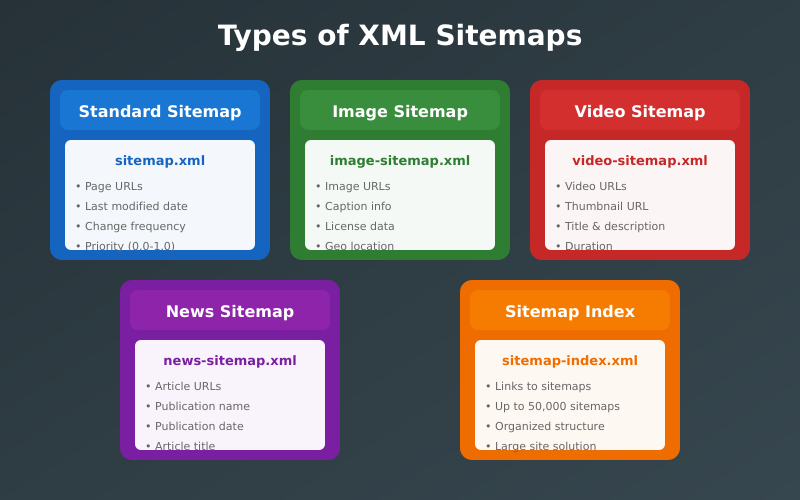
    Types of XML Sitemaps - Standard, Image, Video, News, and Sitemap Index

    There are several types of sitemaps, each serving different purposes:

    1. XML Sitemap (Standard)

    The most common type. Lists your website’s pages for search engines. This is what most people mean when they say “sitemap.”

    2. Sitemap Index

    A master file that references multiple sitemaps. Required when you have more than 50,000 URLs or your sitemap exceeds 50MB.

    <sitemapindex xmlns="http://www.sitemaps.org/schemas/sitemap/0.9">
      <sitemap>
        <loc>https://example.com/sitemap-posts.xml</loc>
      </sitemap>
      <sitemap>
        <loc>https://example.com/sitemap-pages.xml</loc>
      </sitemap>
    </sitemapindex>

    3. Image Sitemap

    Helps Google discover images that might not be found through crawling (like images loaded via JavaScript).

    4. Video Sitemap

    Provides metadata about videos on your site — title, description, duration, thumbnail. Essential for video SEO.

    5. News Sitemap

    For Google News publishers. Includes articles published within the last 48 hours.

    6. HTML Sitemap

    A user-facing page (not XML) that lists links to all pages. Helps visitors navigate but less important for SEO than XML sitemaps.

    How to Create an XML Sitemap

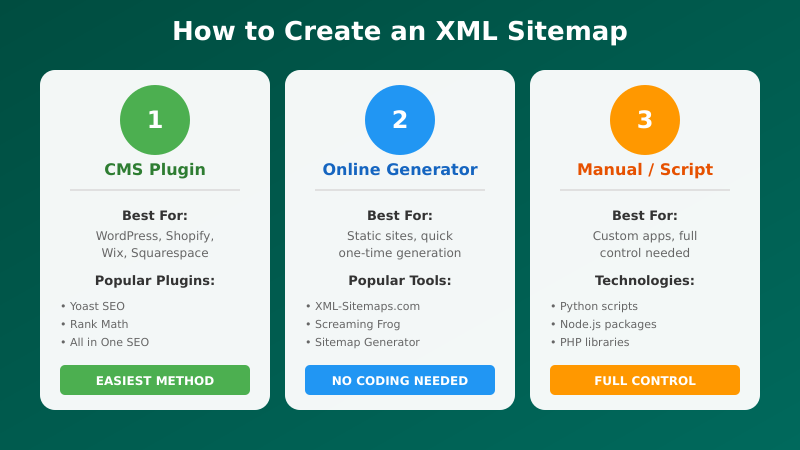
    How to Create an XML Sitemap - CMS Plugin, Online Generator, and Manual Methods

    There are several ways to create a sitemap depending on your platform and technical skills.

    Method 1: WordPress Plugins (Easiest)

    If you use WordPress, plugins handle everything automatically:

    Yoast SEO (Recommended)

    • Install and activate Yoast SEO
    • Go to Yoast SEO → Settings → Site Features
    • Ensure “XML sitemaps” is enabled
    • Your sitemap is at yoursite.com/sitemap_index.xml

    Rank Math

    • Install and activate Rank Math
    • Go to Rank Math → Sitemap Settings
    • Configure which post types to include
    • Your sitemap is at yoursite.com/sitemap_index.xml

    Both plugins automatically update your sitemap when you publish, edit, or delete content.

    Method 2: Built-in CMS Features

    Many platforms generate sitemaps automatically:

    • Shopify — Automatic at /sitemap.xml
    • Wix — Automatic at /sitemap.xml
    • Squarespace — Automatic at /sitemap.xml
    • Webflow — Automatic at /sitemap.xml

    Check your platform’s documentation — most modern CMS platforms include this feature.

    Method 3: Online Sitemap Generators

    For static sites or one-time generation:

    Limitation: Static sitemaps become outdated when you add or remove pages. You’ll need to regenerate manually.

    Method 4: Manual Creation

    For small sites or complete control, create the XML file manually:

    • Create a file named sitemap.xml
    • Add the XML structure with your URLs
    • Upload to your root directory
    • Update manually when content changes

    Only recommended for very small, rarely-updated sites.

    How to Submit Your Sitemap

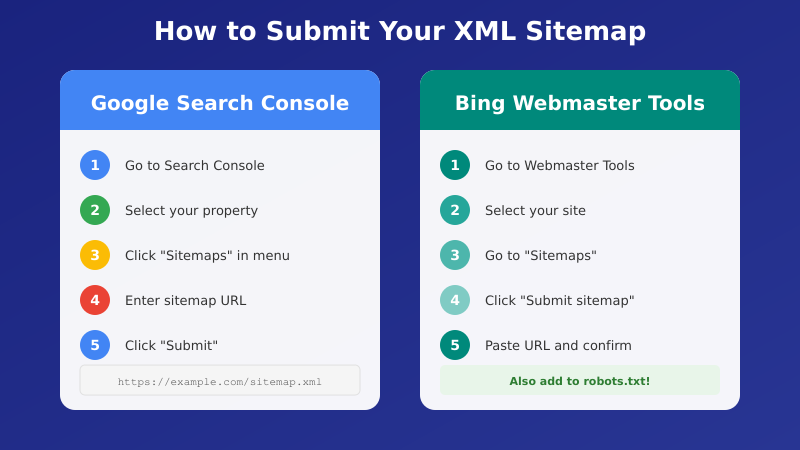
    How to Submit Your XML Sitemap to Google Search Console and Bing Webmaster Tools

    Once created, submit your sitemap to search engines for faster discovery.

    Google Search Console

    • Go to Google Search Console
    • Select your property
    • Navigate to Sitemaps in the left menu
    • Enter your sitemap URL (e.g., sitemap.xml)
    • Click Submit

    Google will show the submission status and how many URLs were discovered.

    Bing Webmaster Tools

    robots.txt Method

    You can also reference your sitemap in robots.txt. Add this line:

    Sitemap: https://yoursite.com/sitemap.xml

    This helps any crawler that reads robots.txt discover your sitemap automatically.

    XML Sitemap Best Practices

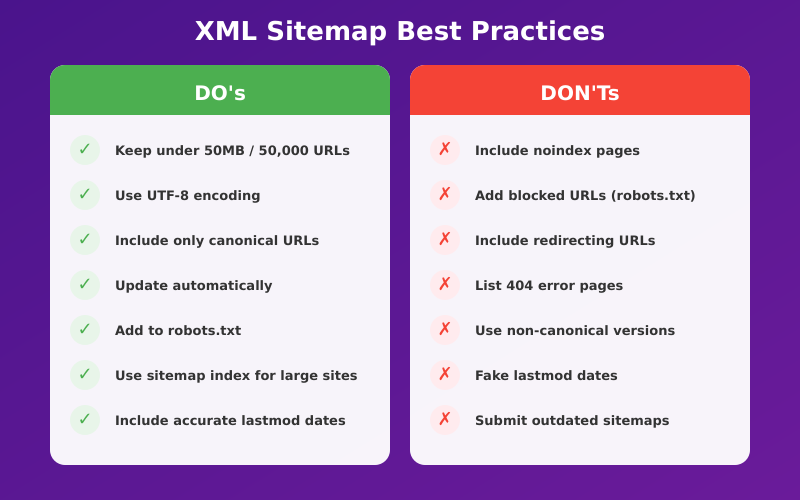
    XML Sitemap Best Practices - Do's and Don'ts

    Follow these guidelines for an effective sitemap:

    1. Only Include Indexable Pages

    Your sitemap should only contain pages you want indexed:

    • Don’t include noindex pages
    • Don’t include redirected URLs
    • Don’t include pages blocked by robots.txt
    • Don’t include duplicate content (use canonical URLs only)

    2. Use Absolute URLs

    Always use full URLs including the protocol:

    Correct: https://example.com/page/
    Wrong: /page/

    3. Keep URLs Consistent

    Use the same URL format throughout:

    • Choose www or non-www (stick to one)
    • Choose trailing slash or no trailing slash (stick to one)
    • Always use HTTPS

    4. Keep It Under Size Limits

    • Maximum 50,000 URLs per sitemap
    • Maximum 50MB file size (uncompressed)
    • Use a sitemap index for larger sites

    5. Use Accurate lastmod Dates

    Only update <lastmod> when page content actually changes. Google trusts accurate dates but will ignore them if they’re unreliable.

    6. Use UTF-8 Encoding

    Ensure your sitemap uses UTF-8 encoding and properly escapes special characters:

    • & becomes &amp;
    • ' becomes &apos;
    • " becomes &quot;

    Common Sitemap Mistakes

    Avoid these common errors:

    Including Non-Canonical URLs

    If page A canonicals to page B, only include page B in your sitemap. Including both creates confusion.

    Including Noindex Pages

    Pages with noindex meta tags shouldn’t be in your sitemap. You’re telling Google to both find and ignore the same page — mixed signals.

    Including Redirects

    Redirected URLs (301, 302) shouldn’t be in your sitemap. Include only the final destination URLs.

    Not Updating the Sitemap

    Static sitemaps become outdated quickly. Use dynamic generation (CMS plugins) or regenerate regularly.

    Wrong URL Protocol

    If your site uses HTTPS, your sitemap must list HTTPS URLs. HTTP URLs in an HTTPS sitemap create problems.

    Checking Your Sitemap

    After creating your sitemap, verify it works correctly:

    1. Access It Directly

    Visit yoursite.com/sitemap.xml in your browser. You should see XML content, not an error page.

    2. Validate the XML

    Use a validator to check for syntax errors:

    3. Check Search Console

    After submitting, monitor the Sitemaps report for:

    • Number of URLs discovered vs. indexed
    • Any errors or warnings
    • Last read date

    FAQ

    Does every website need an XML sitemap?

    Technically no. Small sites with good internal linking may not need one. But there’s no downside to having one, and it provides visibility into indexing through Search Console. I recommend creating one for every site.

    Will a sitemap guarantee my pages get indexed?

    No. A sitemap helps Google discover your pages, but it doesn’t guarantee indexing. Google still decides whether each page is worth indexing based on quality, relevance, and other factors.

    How often should I update my sitemap?

    Ideally, automatically whenever content changes. If using a CMS plugin, this happens automatically. For static sitemaps, regenerate whenever you add, remove, or significantly update pages.

    Should I include images and videos in my sitemap?

    For most sites, a standard XML sitemap is sufficient — Google finds images and videos when crawling your pages. Dedicated image/video sitemaps are mainly useful if your media content is important for search (e.g., stock photo sites, video platforms).

    Can I have multiple sitemaps?

    Yes. You can have separate sitemaps for different content types (posts, pages, products) and link them via a sitemap index file. This is common for large sites and helps with organization.

    Final Thoughts

    XML sitemaps are a simple but essential part of technical SEO. They help search engines discover your content faster and give you visibility into indexing through Search Console.

    For most sites, the easiest approach is using your CMS’s built-in feature or an SEO plugin like Yoast or Rank Math. These automatically generate and update your sitemap whenever content changes.

    Once created, submit it to Google Search Console and Bing Webmaster Tools. Then check back periodically to ensure there are no errors and that your pages are being discovered.

    Remember: a sitemap is just one piece of the SEO puzzle. It helps with discovery, but your content still needs to be valuable and your site technically sound for pages to actually rank.

    I set up XML sitemaps as part of every website launch and SEO audit. This guide reflects the current best practices I use for my own sites and client work.