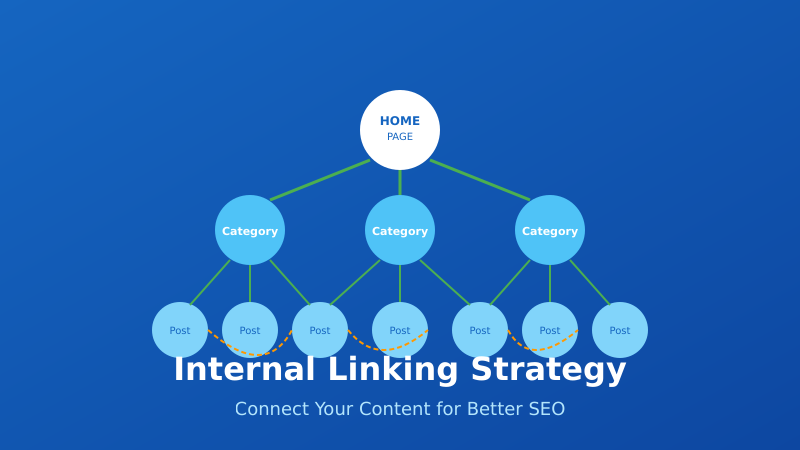
Tag: link building

  • Internal Linking Strategy: How to Build a Strong Link Structure for SEO

    Internal Linking Strategy: How to Build a Strong Link Structure for SEO

    Internal linking is one of the most underutilized SEO tactics. While everyone focuses on building backlinks, the links within your own site often get ignored — even though you have complete control over them.

    A solid internal linking strategy helps search engines understand your site structure, distributes authority to important pages, and keeps users engaged longer. I’ve seen sites significantly improve their rankings just by fixing their internal link structure.

    This guide covers everything you need to know about internal linking for SEO in 2026 — from the fundamentals to advanced strategies you can implement today.
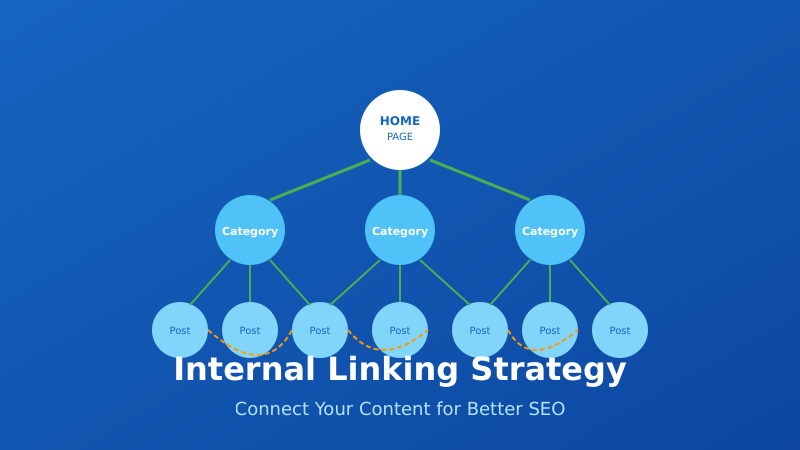
    Internal Linking Strategy - Connect Your Content for Better SEO

    What Are Internal Links?

    Internal links are hyperlinks that point from one page on your website to another page on the same website. They’re different from external links (which point to other websites) and backlinks (which come from other websites to yours).

    Examples of internal links:

    • Navigation menus — Links in your header, footer, and sidebar
    • Contextual links — Links within your content that point to related pages
    • Breadcrumbs — Navigation showing the page’s location in site hierarchy
    • Related posts — Links to similar content at the end of articles
    • Category/tag links — Links to taxonomy archive pages

    Contextual links (links within your main content) are the most valuable for SEO because they carry more weight than navigational links.

    Why Internal Linking Matters for SEO
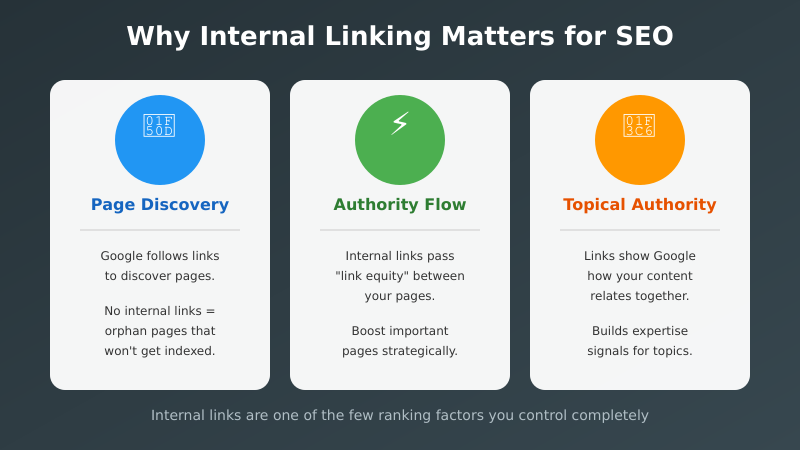
    Why Internal Linking Matters - Page Discovery, Authority Flow, and Topical Authority

    Internal links serve three critical functions for search engine optimization:

    1. Help Search Engines Discover Pages

    Google discovers new pages by following links. If a page has no internal links pointing to it (an “orphan page”), Google may never find it — or take much longer to index it.

    Your XML sitemap helps with discovery, but internal links are still essential for showing Google which pages are important.

    2. Distribute Link Authority (PageRank)

    When a page earns backlinks, it gains authority. Internal links pass some of that authority to other pages on your site. This is sometimes called “link equity” or “link juice.”

    Strategic internal linking lets you channel authority from high-performing pages to pages you want to rank better. Your homepage typically has the most authority — linking from it to important pages boosts their ranking potential.

    3. Establish Topical Authority

    Internal links help Google understand the relationships between your pages. When you link related content together, you signal topical expertise.

    In 2026, with AI-powered search becoming more prevalent, logical content architecture is even more important. Search engines and AI systems need to understand how concepts on your site relate to each other.

    Internal Linking Strategies
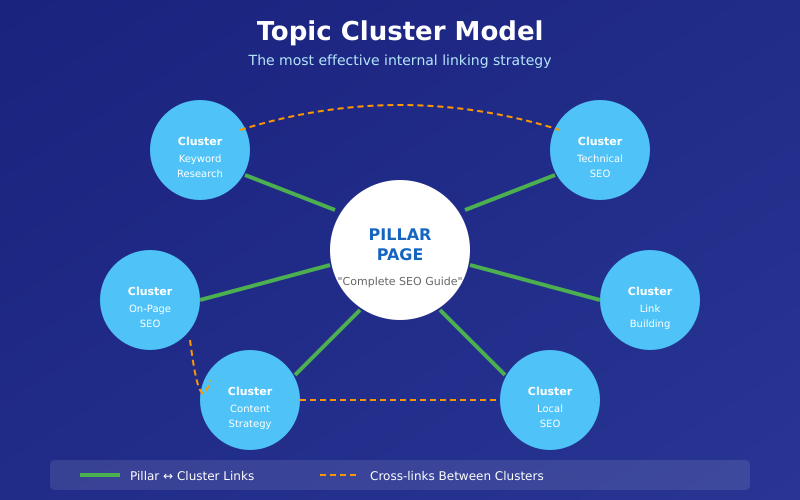
    Topic Cluster Model - The Most Effective Internal Linking Strategy

    There are several approaches to structuring your internal links. The best strategy depends on your site type and goals.

    Topic Clusters (Hub and Spoke)

    The most effective modern approach is the topic cluster model:

    • Pillar page — A comprehensive guide covering a broad topic
    • Cluster pages — Supporting articles that dive deep into subtopics
    • Internal links — The pillar links to all cluster pages, and they link back

    Example: A pillar page about “SEO” links to cluster pages about keyword research, technical SEO, link building, on-page optimization, etc. Each cluster page links back to the pillar and to related cluster pages.

    This structure:

    • Establishes topical authority
    • Creates clear content hierarchy
    • Distributes authority efficiently
    • Helps users find related content

    Silo Structure

    Similar to topic clusters, but more rigid. Content is organized into strict categories (silos), and pages only link within their silo — not across silos.

    This works well for large sites with distinct product categories or service areas. It keeps topical relevance tight but can feel artificial if overdone.

    Cornerstone Content

    Identify your most important pages (cornerstone content) and ensure they receive the most internal links. These are typically:

    • Your best, most comprehensive content
    • Pages targeting your most valuable keywords
    • Pages you most want to rank

    Every time you publish related content, link to your cornerstone pages. This concentrates authority where it matters most.

    Internal Linking Best Practices
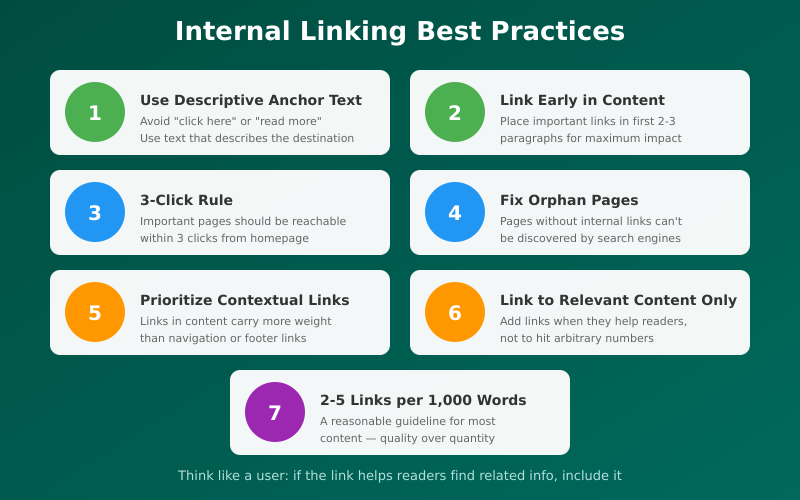
    Internal Linking Best Practices - 7 Key Guidelines

    Follow these guidelines for maximum impact:

    1. Use Descriptive Anchor Text

    Anchor text is the clickable text of a link. It should describe what the linked page is about.

    Good: “Learn more about technical SEO audits
    Bad: “Learn more here

    Descriptive anchor text helps both users and search engines understand the destination page’s topic. Avoid generic phrases like “click here,” “read more,” or “this article.”

    2. Link Early in Content

    Google gives more weight to links that appear earlier on a page. Place your most important internal links within the first 2-3 paragraphs when possible.

    This also improves user engagement — readers are more likely to click links they encounter early.

    3. Keep Important Pages Within 3 Clicks

    Users (and search engines) should be able to reach any important page within 3 clicks from your homepage. This is sometimes called “crawl depth.”

    Deep pages (many clicks from homepage) receive less authority and may be crawled less frequently. If you have important content buried deep in your site structure, add more internal links to bring it closer to the surface.

    4. Fix Orphan Pages

    Orphan pages have no internal links pointing to them. They’re difficult for Google to discover and typically don’t rank.

    Use tools like Screaming Frog to identify orphan pages, then add internal links to them from relevant content.

    5. Prioritize Contextual Links

    Links within your main content (contextual links) carry more weight than links in navigation, sidebars, or footers. These “boilerplate” links appear on every page, so they’re less valuable signals.

    Focus on adding relevant contextual links within your articles and pages.

    6. Link to Relevant Content Only

    Only link when it makes sense for the reader. Forced or irrelevant links hurt user experience and can confuse search engines about your page topics.

    Ask yourself: “Would a reader find this link helpful?” If not, don’t add it.

    7. Use a Reasonable Number of Links

    There’s no magic number, but a good guideline is 2-5 internal links per 1,000 words. More is fine if they’re all relevant, but don’t stuff links just to hit a number.

    Too many links dilute the authority passed to each one and can overwhelm readers.

    How to Audit Your Internal Links
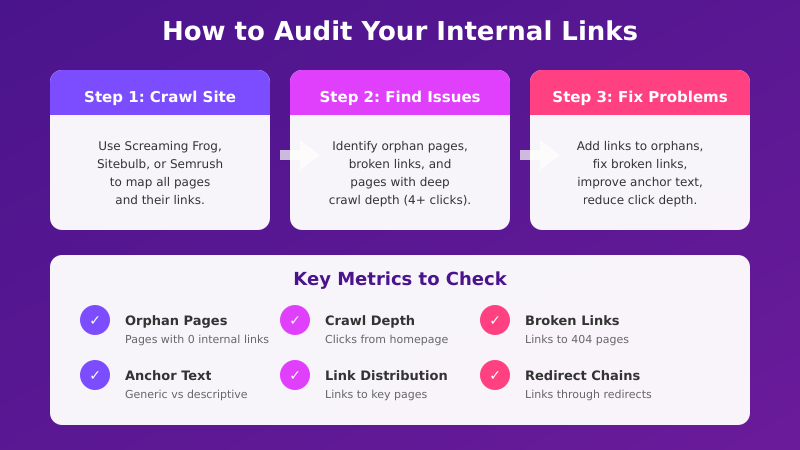
    How to Audit Your Internal Links - Step by Step Process

    Regular audits help you identify and fix internal linking issues. Here’s how to conduct one:

    Step 1: Crawl Your Site

    Use a crawler like Screaming Frog, Sitebulb, or Semrush to map all your pages and their internal links. This gives you a complete picture of your link structure.

    Step 2: Find Orphan Pages

    Look for pages with zero internal links pointing to them. These need to be connected to your site structure.

    Step 3: Identify High-Authority Pages

    Check Google Search Console or your analytics to find pages with the most backlinks or traffic. These are your authority sources — make sure they link to pages you want to boost.

    Step 4: Check Crawl Depth

    Find pages that are more than 3 clicks from your homepage. Either add more links to reduce depth, or evaluate whether these pages are still important.

    Step 5: Review Anchor Text

    Look for generic anchor text (“click here,” “read more”) and replace with descriptive text. Also check for over-optimized anchors (exact-match keywords used excessively).

    Step 6: Fix Broken Internal Links

    Identify links pointing to pages that no longer exist (404 errors) or redirect. Update them to point to the correct URLs. Learn more about finding and fixing broken links.

    Internal Linking Tools

    These tools help you analyze and improve your internal link structure:

    ToolBest ForPrice
    Screaming FrogComprehensive site crawlingFree (500 URLs) / £199/year
    SemrushInternal link audit reportsFrom $139/month
    AhrefsLink opportunity suggestionsFrom $129/month
    SitebulbVisual link structure analysisFrom $13.50/month
    Link WhisperWordPress internal link suggestions$77/year
    Yoast SEOBasic WordPress linking featuresFree / $99/year

    For most sites, Screaming Frog’s free version combined with Google Search Console provides enough data to audit and improve internal linking.

    Common Internal Linking Mistakes

    Avoid these frequent errors:

    Orphan Pages

    Pages with no internal links can’t pass a technical SEO audit. Every important page needs at least one internal link pointing to it.

    Generic Anchor Text

    “Click here” and “read more” waste an opportunity to signal relevance. Use descriptive text that tells users and search engines what to expect.

    Broken Links

    Links to deleted or moved pages hurt user experience and waste crawl budget. Audit regularly and fix promptly.

    Too Many Links

    Stuffing pages with links dilutes authority and overwhelms readers. Link when relevant, not to hit arbitrary numbers.

    Ignoring New Content

    When you publish new content, don’t just add links from it — also update older content to link to the new page. This two-way linking accelerates indexing and authority building.

    Linking Only from Navigation

    Navigation links are important but not sufficient. Contextual links within content carry more SEO weight.

    FAQ

    How many internal links should I have per page?

    There’s no fixed number. A good guideline is 2-5 links per 1,000 words, but quality matters more than quantity. Add links when they help the reader find relevant content. Don’t force links just to hit a target number.

    Should I use nofollow on internal links?

    Almost never. Nofollow tells search engines not to pass authority through the link. For internal links, you want authority to flow freely. The only exception might be links to login pages or other pages you don’t want indexed.

    Do internal links help with rankings?

    Yes. Internal links help search engines discover pages, understand site structure, and distribute authority. Pages with more quality internal links typically rank better than orphan pages, assuming the content quality is similar.

    Should anchor text be exact match keywords?

    Not always. Use natural, descriptive anchor text that includes relevant keywords but reads naturally. Varying your anchor text looks more natural than using the exact same phrase every time. Over-optimization can look spammy.

    How often should I audit internal links?

    For most sites, quarterly audits work well. Larger sites that publish frequently might benefit from monthly checks. At minimum, audit whenever you delete pages or make significant structural changes.

    Final Thoughts

    Internal linking is one of the few SEO factors you control completely. You don’t need to convince anyone to link to you — you just need to link to yourself strategically.

    Start with the basics: fix orphan pages, use descriptive anchor text, and ensure important pages are within 3 clicks of your homepage. Then build out topic clusters to establish topical authority.

    The key is to think like a user. Link when it helps readers find related information. If your internal links make sense for humans, they’ll make sense for search engines too.

    I audit internal links as part of every SEO project. Small improvements to link structure often deliver surprisingly large ranking gains — it’s one of the highest-ROI activities in SEO.
  • How to Find and Fix Broken Links on Your Website

    How to Find and Fix Broken Links on Your Website

    Broken links are one of the most common — and most overlooked — SEO issues. They frustrate visitors, waste crawl budget, and leak the link equity you’ve worked hard to build.

    I’ve audited hundreds of websites, and almost every one has broken links hiding somewhere. The good news? They’re easy to find and fix once you know where to look.

    This guide covers everything: what broken links are, why they matter, how to find them using free tools, and exactly how to fix each type.

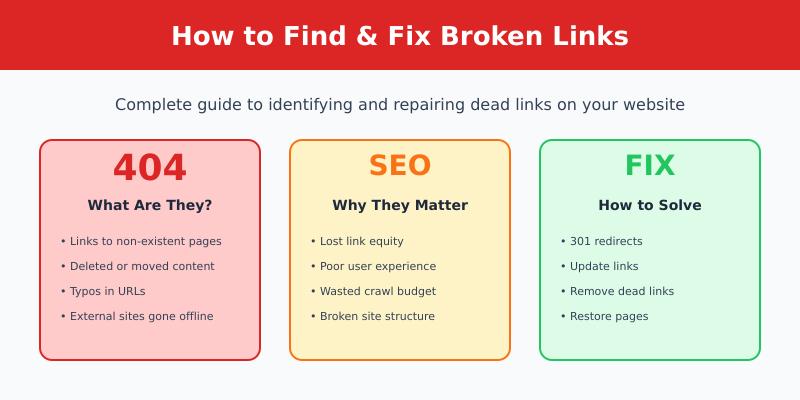
    How to Find and Fix Broken Links - Complete Guide

    What Are Broken Links?

    A broken link (also called a “dead link”) is a hyperlink that points to a page or resource that no longer exists or can’t be accessed. When someone clicks a broken link, they see an error page instead of the content they expected.

    The most common error is the 404 Not Found page, but broken links can return other errors too:

    Error CodeMeaningCommon Cause
    404Page not foundPage deleted or URL changed
    410Gone (permanently)Content intentionally removed
    500Server errorServer-side problems
    503Service unavailableServer overload or maintenance
    TimeoutNo responseServer too slow or offline

    Internal vs External Broken Links

    Internal broken links point to pages on your own website that no longer exist. These are fully within your control to fix.

    External broken links point to other websites. The linked page may have been deleted, moved, or the entire site might be gone. You can’t fix the destination, but you can update or remove the link.

    Why Broken Links Matter for SEO

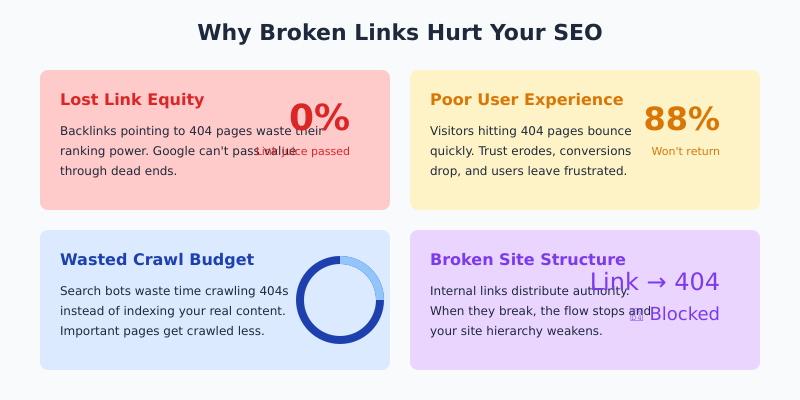
    Why Broken Links Hurt Your SEO

    Broken links hurt your website in several ways:

    1. Lost Link Equity

    When external sites link to a page that returns a 404, you lose the “link juice” (ranking power) those backlinks provide. Google can’t pass value through a dead end.

    This is especially painful if you have quality backlinks pointing to pages you’ve deleted or moved without redirects.

    2. Poor User Experience

    Nothing frustrates visitors more than clicking a link and hitting a dead end. Broken links:

    • Increase bounce rates
    • Reduce time on site
    • Damage trust and credibility
    • Lead to lost conversions

    3. Wasted Crawl Budget

    Search engine bots have limited time to crawl your site. Every time they hit a 404, they waste crawl budget that could be spent indexing your actual content.

    For large sites, this can mean important pages get crawled less frequently.

    4. Broken Internal Linking

    Internal links help distribute page authority throughout your site. When internal links break, that flow of authority stops, weakening your site structure.

    What Causes Broken Links?

    Understanding the causes helps prevent future broken links:

    • Deleted pages — Content removed without setting up redirects
    • URL changes — Permalinks changed without redirects
    • Typos — Mistyped URLs when creating links
    • Site migration — Moving to a new domain or CMS without proper redirects
    • External site changes — Other websites delete or move their content
    • Domain expiration — Linked websites go offline permanently
    • Incorrect relative URLs — Links that worked in one location but break when content moves

    How to Find Broken Links

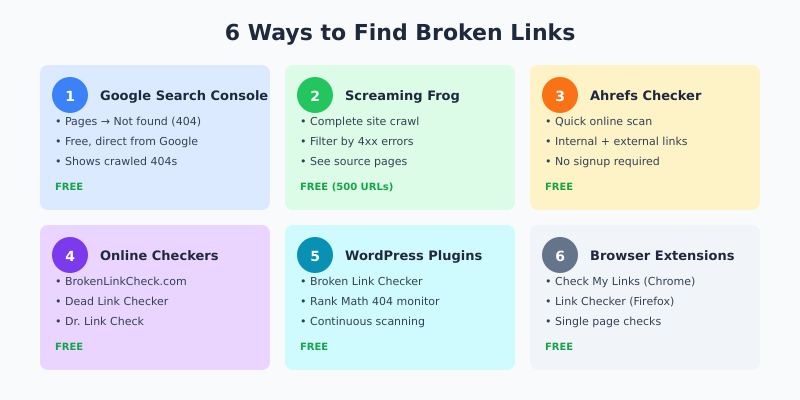
    6 Ways to Find Broken Links

    There are several methods to find broken links on your website, from quick online checks to comprehensive site crawls.

    Method 1: Google Search Console (Free)

    Google Search Console reports crawl errors including 404 pages that Google’s bot has encountered.

    How to check:

    • Go to Google Search Console
    • Navigate to Pages (formerly Index Coverage)
    • Click on Not found (404) in the “Why pages aren’t indexed” section
    • Review the list of 404 URLs

    Limitation: Only shows pages Google tried to crawl — doesn’t catch all internal broken links.

    Method 2: Screaming Frog (Free up to 500 URLs)

    Screaming Frog SEO Spider crawls your entire site and identifies all broken links — both internal and external.

    How to check:

    • Download and open Screaming Frog
    • Enter your website URL and click Start
    • Wait for the crawl to complete
    • Click Response Codes tab
    • Filter by Client Error (4xx)
    • Click any broken URL, then check the Inlinks tab to see which pages link to it

    This is my preferred method because you see exactly which pages contain the broken links.

    Method 3: Ahrefs Broken Link Checker (Free)

    Ahrefs Broken Link Checker is a free online tool that quickly scans any website for broken links.

    How to use:

    • Enter your domain
    • Click “Check broken links”
    • Review the results showing broken internal and external links

    Quick and easy, but limited depth compared to a full crawl.

    Method 4: Online Broken Link Checkers

    Several free online tools can scan your site for broken links:

    These are good for quick checks but may miss links on JavaScript-heavy pages.

    Method 5: WordPress Plugins

    If you use WordPress, dedicated plugins can monitor your site for broken links:

    • Broken Link Checker — Monitors posts, pages, and comments for broken links
    • Rank Math — Includes 404 monitoring in the free version
    • Yoast SEO Premium — Redirects manager helps fix broken links

    Warning: The Broken Link Checker plugin can slow down your site if you have lots of content. Consider running it periodically rather than continuously.

    Method 6: Browser Extensions

    For checking individual pages:

    • Check My Links (Chrome) — Highlights broken links on any page
    • Link Checker (Firefox) — Similar functionality for Firefox users

    Great for spot-checking important pages after updates.

    How to Fix Broken Links

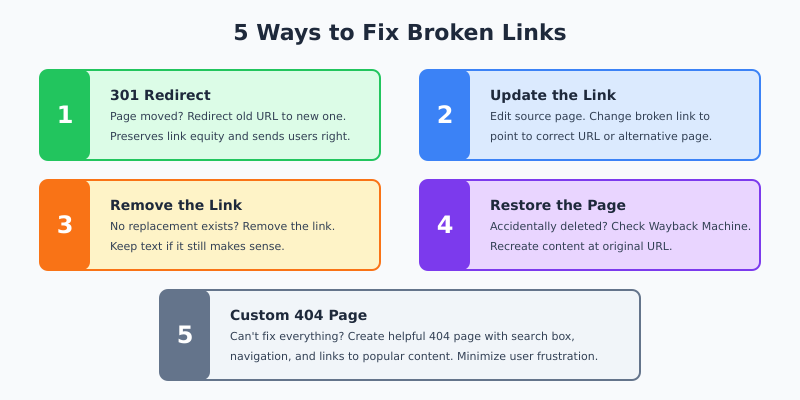
    5 Ways to Fix Broken Links

    Once you’ve found broken links, here’s how to fix them based on the situation:

    Fix 1: Set Up 301 Redirects

    If you moved or renamed a page, redirect the old URL to the new one. This preserves link equity and sends visitors to the right place.

    In WordPress:

    • Use Rank Math’s redirect manager (free)
    • Use Yoast SEO Premium’s redirect feature
    • Use the Redirection plugin (free)

    In .htaccess (Apache):

    Redirect 301 /old-page/ https://yoursite.com/new-page/

    In nginx:

    rewrite ^/old-page/$ /new-page/ permanent;

    Fix 2: Update the Link

    If you have internal links pointing to a deleted page, update them to point to a relevant existing page.

    Steps:

    • Find all pages linking to the broken URL (Screaming Frog’s Inlinks tab helps)
    • Edit each page
    • Update the link to point to the correct URL

    For external broken links, either find the new URL (check if the page moved) or link to an alternative resource.

    Fix 3: Remove the Link

    If the linked content no longer exists and there’s no suitable replacement, remove the link entirely. Keep the surrounding text if it still makes sense.

    Fix 4: Restore the Page

    If a page was accidentally deleted and has valuable backlinks, consider restoring it:

    • Check the Wayback Machine for archived versions
    • Recreate the content
    • Publish at the original URL

    This recovers the lost link equity from existing backlinks.

    Fix 5: Create a Custom 404 Page

    You can’t fix every broken link, especially external ones pointing to your site. A helpful 404 page minimizes frustration:

    • Acknowledge the error
    • Provide a search box
    • Link to popular pages or categories
    • Include navigation to help visitors find what they need

    Best Practices for Preventing Broken Links

    Prevention is easier than fixing. Follow these practices to minimize broken links:

    1. Always Redirect When Deleting or Moving Pages

    Before deleting any page, check if it has:

    • Backlinks (check in Google Search Console or Ahrefs)
    • Internal links pointing to it
    • Organic traffic

    If yes, set up a redirect to a relevant page before removing it.

    2. Use Absolute URLs

    Prefer full URLs (https://yoursite.com/page/) over relative URLs (/page/). Absolute URLs are less likely to break during site changes.

    3. Check Links Before Publishing

    Before publishing any content, verify that all links work. Use browser extensions like “Check My Links” for quick verification.

    4. Run Regular Audits

    Schedule periodic broken link audits:

    • Small sites: Monthly
    • Medium sites: Bi-weekly
    • Large sites: Weekly or continuous monitoring

    5. Be Careful with External Links

    External links are beyond your control. To minimize issues:

    • Link to authoritative, established websites
    • Avoid linking to pages likely to change (product pages, news articles)
    • Prefer linking to main pages rather than deep internal pages

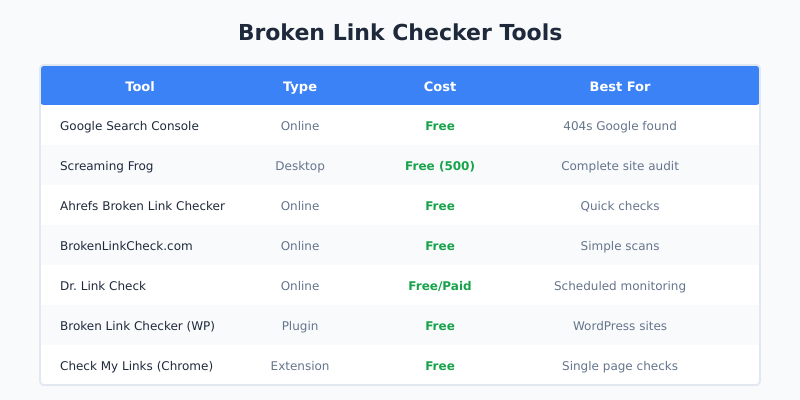
    Broken Link Checker Tools Comparison

    Broken Link Checker Tools Comparison
    ToolTypeCostBest For
    Google Search ConsoleOnlineFree404s Google found
    Screaming FrogDesktopFree (500 URLs)Complete site audit
    Ahrefs Broken Link CheckerOnlineFreeQuick checks
    BrokenLinkCheck.comOnlineFreeSimple scans
    Dr. Link CheckOnlineFree/PaidScheduled monitoring
    Broken Link Checker (WP)PluginFreeWordPress sites
    Check My LinksExtensionFreeSingle page checks

    FAQ

    Do broken links hurt SEO?

    Yes. Broken internal links waste crawl budget and break your site’s link structure. Broken pages that have backlinks lose the ranking value those links provide. Google has confirmed that excessive 404 errors can indicate poor site quality.

    How many broken links are too many?

    Even one broken link on an important page is too many. For the overall site, aim for zero broken links to internal pages. Some broken external links are inevitable over time, but fix them when discovered.

    Should I use 301 or 302 redirects for broken links?

    Use 301 (permanent) redirects in almost all cases. A 301 tells search engines the page has permanently moved and passes link equity to the new URL. Only use 302 (temporary) if you genuinely plan to restore the original page soon.

    How often should I check for broken links?

    At minimum, monthly. Large or frequently updated sites should check weekly. After any major site changes (redesign, migration, URL restructure), do a complete broken link audit immediately.

    What if I can’t find a replacement for a broken external link?

    Check the Wayback Machine to see what the page contained. Then either find similar content elsewhere to link to, or remove the link and adjust the surrounding text. Don’t leave broken links just because you can’t find a perfect replacement.

    Final Thoughts

    Broken links accumulate over time on every website. External sites change, pages get deleted, URLs get updated — it happens. The key is catching and fixing them before they harm your SEO and user experience.

    Start with Google Search Console to see what Google has already found. Then run a complete crawl with Screaming Frog for the full picture. Set up 301 redirects for moved content, update links to deleted pages, and create a helpful 404 page for anything you can’t fix.

    Make broken link audits part of your regular SEO maintenance. It’s one of those small tasks that compounds over time — fix them now, and you won’t have a massive cleanup job later.

    I find and fix broken links as part of every technical SEO audit. This guide reflects the process I use for my own sites and client work.